
Limit upload speed
Upload speed limits stop large uploads from using a whole internet connection. Without them, a big upload to Dew takes as much of the line as it can, which can slow down video calls, browsing and other uploads for everyone sharing that line. When they’re set, Dew accepts uploads only as fast as the limits allow, and the uploader’s computer slows down to match. Uploaders don’t need to change anything, in the browser or the desktop app.
You need:
- An admin account on your Dew server
- The upload speed of the internet lines you want to protect, from your provider or a speed test
1. Choose your limits
Section titled “1. Choose your limits”There are two limits. You can set either or both.
- Per network protects the line each upload comes from. Every office or home network sending files to Dew gets at most this speed. Set it to about 80% of the upload speed of the slowest office line you want to protect. For example, for a line with 50 Mbit/s upload, set 40.
- Total protects the line your Dew server is on. All uploads together get at most this speed. Set it to about 80% of your server line’s download speed.
Leaving about 20% of the line free keeps it responsive while an upload runs.
When several networks upload at once and the total limit is reached, each network gets an equal share. A computer opening many connections doesn’t get more than one opening a few. If one network needs less than its share, the others get the rest.
2. Set the limits
Section titled “2. Set the limits”- Open Settings → General settings.
- In the scope menu at the top, choose Global Defaults. The limits apply to the whole server, so they aren’t shown for individual domains.
- Open Uploads and find Upload speed limits.
- Enter the Per network and Total limits in Mbit/s. Leave a field empty for no limit.
- Click Save changes.
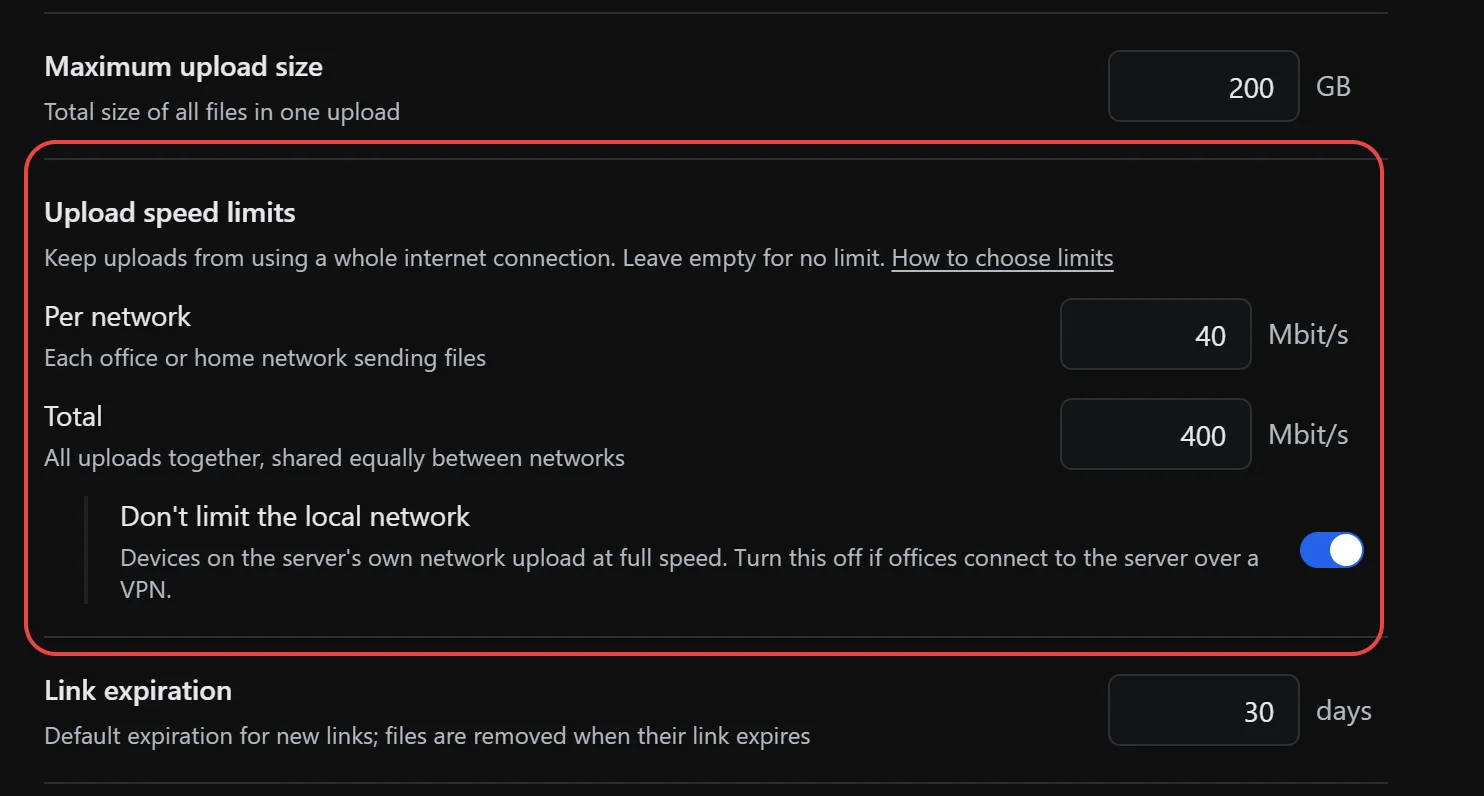
The limits apply straight away, including to uploads already in progress.
3. Decide whether to limit your local network
Section titled “3. Decide whether to limit your local network”Once a limit is set, Don’t limit the local network appears. It is on by default: devices with a private address, such as 192.168.x.x or 10.x.x.x, upload at full speed, because on your own network their uploads don’t cross your internet line.
Turn it off if offices reach your Dew server over a VPN. VPN users show up with private addresses too, but their uploads do cross their office’s internet line.
Before you rely on the limits
Section titled “Before you rely on the limits”- Reverse proxy. If a reverse proxy sits in front of Dew, trust it (see Tell Dew about the proxy). Otherwise Dew sees every upload as coming from the proxy: all uploaders share one per-network limit, or, with Don’t limit the local network on, none is limited at all.
- Proxy buffering. The proxy must pass uploads through as they arrive, not collect each one first. In nginx, set
proxy_request_buffering off;. With Cloudflare’s proxy, keep request body buffering at Standard (the default) or None, not Full. A proxy that collects uploads first takes them at full speed, so the limits only slow the connection between the proxy and Dew. - What isn’t limited. Downloads, and uploads that go straight to S3 storage when direct upload is turned on for a storage provider. Those uploads don’t pass through your Dew server.
Check it worked
Section titled “Check it worked”Start a large upload from a computer on a limited network and watch the upload speed in the browser or the desktop app. It should settle at or slightly below your Per network limit. From a second network at the same time, the two uploads together should stay within the Total limit.
If something doesn’t work
Section titled “If something doesn’t work”| What you see | What to do |
|---|---|
| Uploads aren’t slowed at all | Check the uploader isn’t on the server’s own network with Don’t limit the local network on. Behind a reverse proxy, check that Reverse proxy on System → System shows Trusted or Configured, and that the proxy doesn’t collect uploads first. |
| Every uploader shares one limit | Dew is seeing your reverse proxy’s address. Trust the proxy as shown in Tell Dew about the proxy. |
| Uploads to S3 storage aren’t slowed | Direct uploads to S3 don’t pass through Dew. Turn off direct upload for that storage provider if you need them limited. |
| The office line is still slow during uploads | Lower Per network until the line stays responsive. Some providers’ real upload speed is lower than the advertised one. |