
Send email through Microsoft 365
Connect Dew to Microsoft 365 so it sends email through Microsoft Graph instead of SMTP. You create a shared mailbox for Dew to send from, register an app in Microsoft Entra, and enter its details in Dew. Microsoft is retiring password-based SMTP for Exchange Online (turned off by default from the end of December 2026), so this is the long-term way to send from a Microsoft 365 tenant.
Before you start
Section titled “Before you start”- You need a Microsoft 365 administrator account: Global Administrator, or both Exchange Administrator and Privileged Role Administrator. Granting admin consent to Microsoft Graph permissions (step 3) needs Global Administrator or Privileged Role Administrator.
1. Create a shared mailbox for Dew
Section titled “1. Create a shared mailbox for Dew”Give Dew its own shared mailbox so email doesn’t come from a person. Recipients see the mailbox’s name as the sender. Shared mailboxes are free and need no license.
- Open the Microsoft 365 admin center.
- Go to Teams & groups → Shared mailboxes.
- Click Add a shared mailbox.
- Fill in the fields:
- Name: the sender name recipients see, for example
Example File Sharing. - Email: the sender address, for example
files@example.com.
- Name: the sender name recipients see, for example
- Save the mailbox and note its email address. You need it in step 5.
2. Register an app in Microsoft Entra
Section titled “2. Register an app in Microsoft Entra”Dew signs in to Microsoft as an app, not as a user.
- Open the Microsoft Entra admin center.
- Go to Entra ID → App registrations → New registration.
- Fill in the fields:
- Name: for example
Dew email. - Supported account types: leave Accounts in this organizational directory only.
- Redirect URI: leave empty.
- Name: for example
- Click Register.
- On the app’s Overview page, copy the Application (client) ID and the Directory (tenant) ID. You need both in step 5.
3. Grant the Mail.Send permission
Section titled “3. Grant the Mail.Send permission”- On the app registration, open API permissions.
- Click Add a permission → Microsoft Graph → Application permissions.
- Search for
Mail.Send, select it, and click Add permissions. - Click Grant admin consent for your organization and confirm.
The permission’s status shows a green Granted check. Without admin consent, sending fails.
Recommended: limit the app to Dew’s mailbox
Section titled “Recommended: limit the app to Dew’s mailbox”With Mail.Send, the app can send as any mailbox in your tenant. To limit it to Dew’s shared mailbox, run these commands in Exchange Online PowerShell, one at a time.
-
Create a mail-enabled security group:
-
Add Dew’s shared mailbox to it. Replace
files@example.comwith your mailbox address: -
Limit the app to that group. Replace
<application-client-id>with the ID from step 2: -
Check the result:
The result shows
AccessCheckResult : Granted. The policy can take up to an hour to apply.
4. Create a client secret
Section titled “4. Create a client secret”- On the app registration, open Certificates & secrets → Client secrets.
- Click New client secret.
- Enter a description and choose an expiration. Microsoft allows up to 24 months.
- Click Add.
- Copy the secret’s Value right away. Microsoft shows it only once.
- Note the Expires date. Dew uses it to warn you before the secret expires.
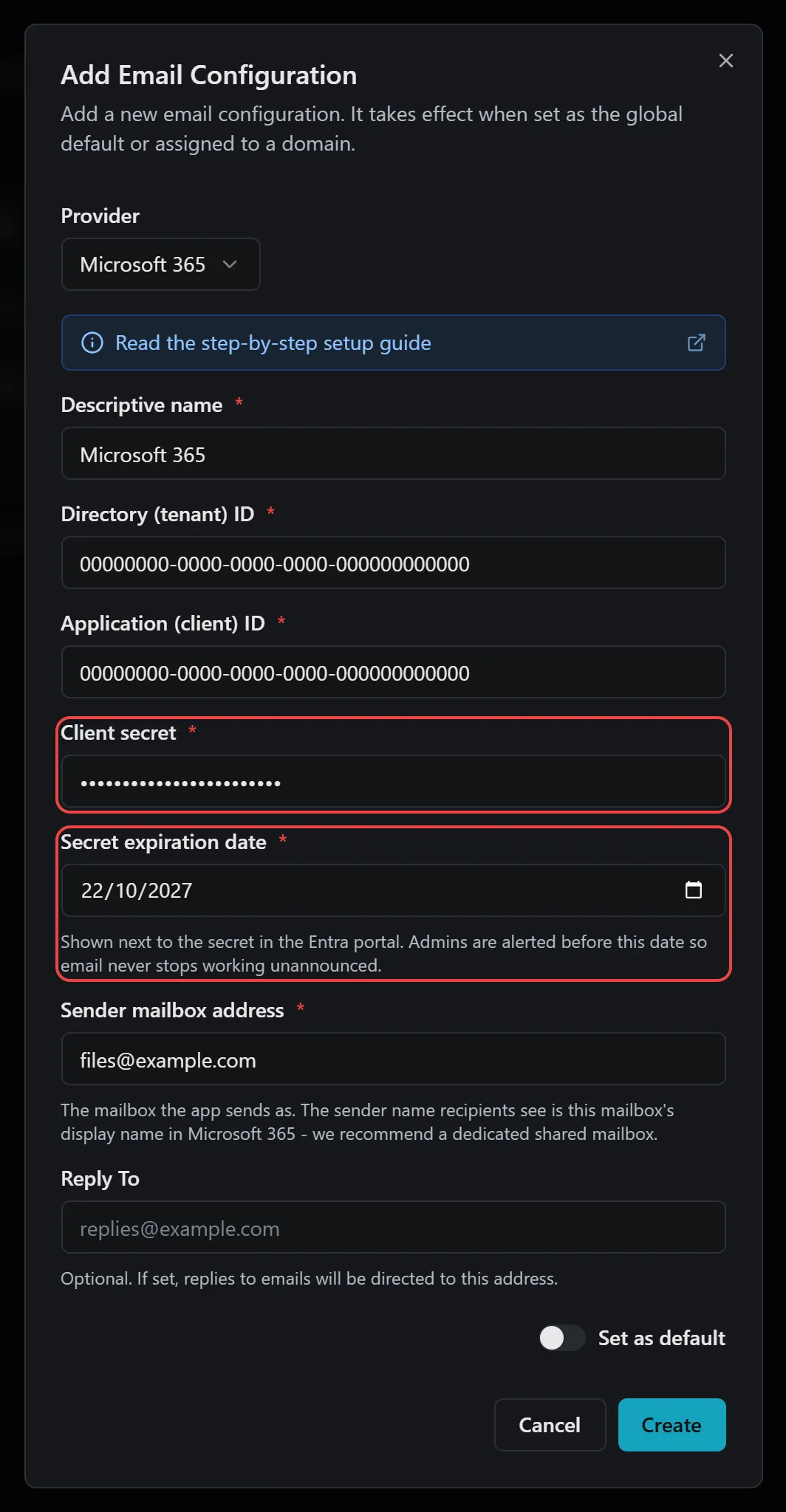
5. Add the configuration in Dew
Section titled “5. Add the configuration in Dew”- In Dew, go to Settings → Email.
- Click Add Configuration.
- Set Provider to Microsoft 365.
- Fill in the fields:
- Descriptive name: any name you’ll recognize, for example
Microsoft 365. - Directory (tenant) ID: from step 2.
- Application (client) ID: from step 2.
- Client secret: the secret’s Value from step 4, not its ID.
- Secret expiration date: the Expires date from step 4.
- Sender mailbox address: the shared mailbox address from step 1, for example
files@example.com.
- Descriptive name: any name you’ll recognize, for example
- Click Create.
The new configuration appears as a card. If it is your first email configuration, it becomes the global default automatically and the card shows Global Default. Otherwise, click the button at the bottom left of the card and choose Global Default, or a domain under Domain Overrides.
6. Send a test email
Section titled “6. Send a test email”- On the configuration’s card, click Send test.
- Enter your own email address.
- Click Send.
When it works, Test email sent appears on the card and the email arrives from your shared mailbox’s name and address. When it doesn’t, the card shows what Microsoft reported. See If something goes wrong.
When the secret expires
Section titled “When the secret expires”Client secrets can’t be renewed, so you create a new one and update Dew. Dew warns admins 30, 14 and 7 days before the Secret expiration date you entered, and again when it passes. The warning appears in the notification bell, and by email if that alert is turned on under System → System → Alerts.
To replace the secret:
- Create a new secret in Entra, as in step 4.
- In Dew, go to Settings → Email.
- On the configuration’s card, click the ⋮ menu and choose Edit.
- Paste the new Client secret and update the Secret expiration date.
- Click Save Changes.
- Click Send test to check it works.
Once the test email arrives, you can delete the old secret in Entra.
If something goes wrong
Section titled “If something goes wrong”| What you see | What to do |
|---|---|
The client secret has expired. … |
Create a new secret and update Dew. See When the secret expires. |
The client secret is invalid. … |
The secret’s ID was entered instead of its Value, or the value was copied incompletely. Create a new secret and copy its Value right away. |
The app is not allowed to send as this mailbox. … |
Admin consent for Mail.Send is missing (step 3), or an application access policy leaves out the sender mailbox. Check the permission’s status and run Test-ApplicationAccessPolicy. |
The sender mailbox was not found in the tenant. … |
Check Sender mailbox address for typos. A newly created shared mailbox can take a few minutes to become available. |
The application (client) ID was not found in the tenant. … |
Check Application (client) ID for typos, and that you copied it from an app registration in the same tenant. |
The directory (tenant) ID was not found. … |
Copy Directory (tenant) ID again from the app’s Overview page. |
For more detail, go to System → System → Error logs. Each failed request has a reference number you can quote when you contact support@getdew.io.