
Set up email
Connect Dew to your email provider’s SMTP server so it can send invitations, verification codes, download receipts, file request emails and password reset links. Until email is set up, none of these are sent.
If your organization uses Microsoft 365 (Exchange Online), follow Send email through Microsoft 365 instead. Microsoft is retiring password-based SMTP.
You’ll need your provider’s SMTP details: host, port, username, password and sender address. Most providers list them in their help pages under “SMTP settings”.
1. Add the SMTP server
Section titled “1. Add the SMTP server”- In Dew, go to Settings → Email.
- Click Add Configuration.
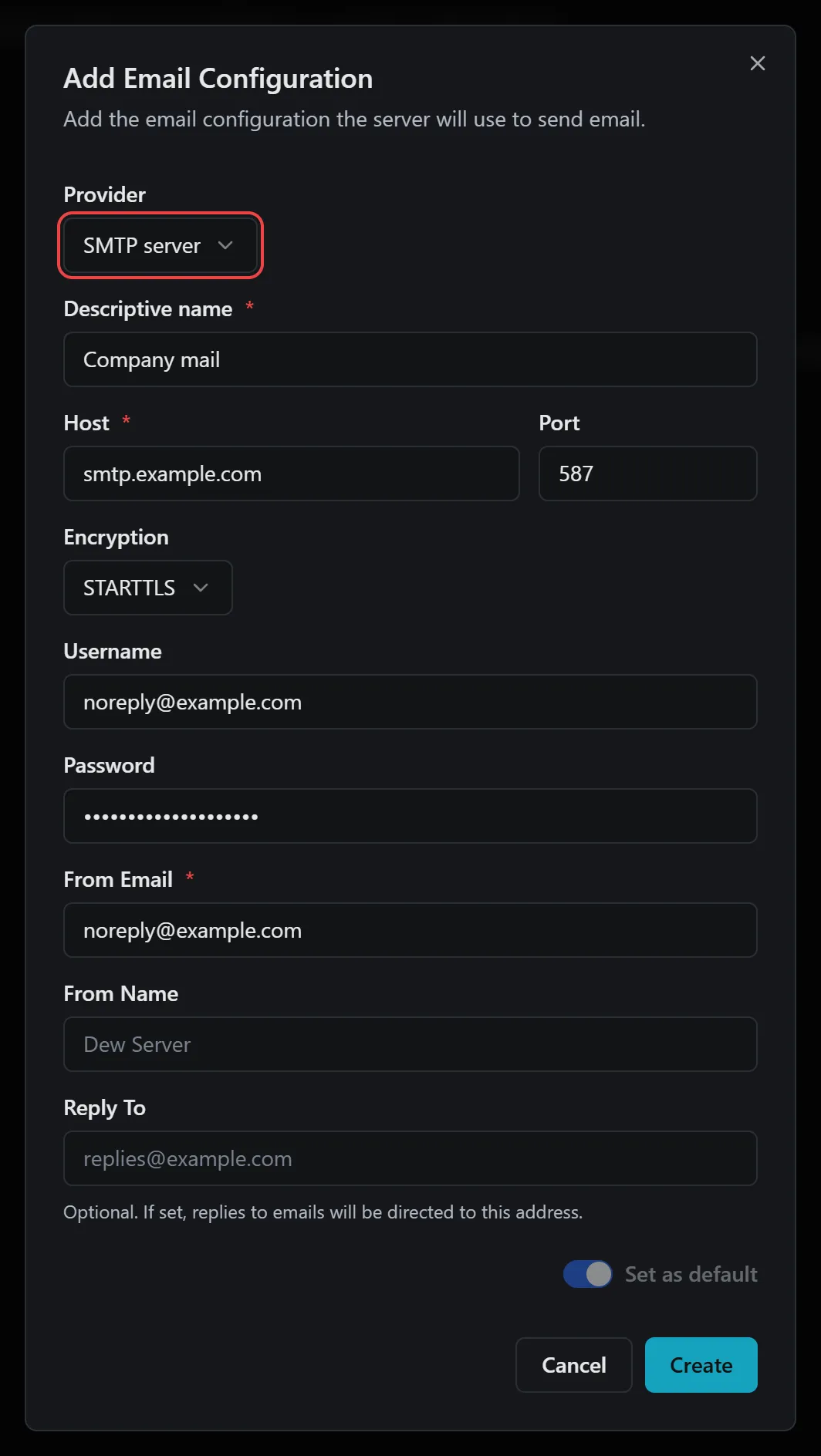
- Leave Provider set to SMTP server.
- Fill in the fields:
- Descriptive name: any name you’ll recognize, for example
Primary SMTP. - Host: your provider’s SMTP hostname, for example
smtp.example.com. - Port:
587unless your provider says otherwise. - Encryption: STARTTLS unless your provider says otherwise. The other options are None and TLS/SSL.
- Username and Password: your SMTP sign-in details.
- From Email: the sender address people see, for example
noreply@example.com. Your provider usually requires an address or domain you have verified with them. - From Name (optional): the sender name people see.
- Reply To (optional): where replies go instead of the From Email address.
- Descriptive name: any name you’ll recognize, for example
- Click Create.
The new configuration appears as a card. Your first email configuration becomes the global default automatically, so the card shows Global Default and every email Dew sends uses it.
2. Send a test email
Section titled “2. Send a test email”- On the configuration’s card, click Send test.
- Enter your own email address.
- Click Send.
When it works, Test email sent appears on the card and the email arrives in your inbox shortly after. If it goes to spam, ask your email provider how to verify the From Email address or domain (SPF and DKIM).
Next, invite your team.
Use different senders for different domains
Section titled “Use different senders for different domains”You can add more than one email configuration and choose which domains use each one. The button at the bottom left of each card shows where it is used: Global Default, a number of domains, or Unassigned.
- Add the second configuration as in step 1.
- On its card, click Unassigned.
- Under Domain Overrides, choose a domain.
That domain now sends with this configuration. Every other domain keeps using the global default. To make a configuration the global default instead, choose Global Default in the same menu.
Admin alert emails, such as certificate, storage and license warnings, use the global default. To choose which alerts are emailed, go to System → System → Alerts, or click Choose which alerts are emailed below the cards.
If something goes wrong
Section titled “If something goes wrong”| What you see | What to do |
|---|---|
We couldn't connect or sign in to the mail server. Details: … |
Check Host, Port, Encryption, Username and Password against your provider’s SMTP settings. A common cause is TLS/SSL chosen for port 587, which needs STARTTLS. |
The mail server did not accept the test email. Details: … |
Dew signed in, but the server refused the message. The details usually name the reason. Check that your provider allows sending from the From Email address. |
We couldn't send the test email. Details: … |
Read the details, then check the configuration’s fields against your provider’s SMTP settings. |
| The provider rejects your password | Many providers need an app password or an enabled “SMTP AUTH” setting instead of your normal account password. |
| The test email arrives in spam | Your provider hasn’t verified the From Email address. Ask them how to set up SPF and DKIM for your domain. |
Set up email to send invitations. when you invite someone |
No active email configuration exists. Add one on Settings → Email first. |
For more detail, go to System → System → Error logs. Each failed request has a reference number you can quote when you contact support@getdew.io.