
Set up SAML SSO with Okta
This guide connects Dew to Okta so your users sign in to Dew with their Okta account. You will create a SAML app integration in Okta, exchange URLs and a signing certificate with Dew, and assign the app to your users. An optional last part sets up SCIM, so Okta creates, updates and deactivates Dew accounts for you.
You need:
- A Dew administrator account.
- A Pro or Enterprise plan. SCIM provisioning needs Enterprise.
- An Okta account with the Super Administrator or Application Administrator role.
1. Start the integration in Dew
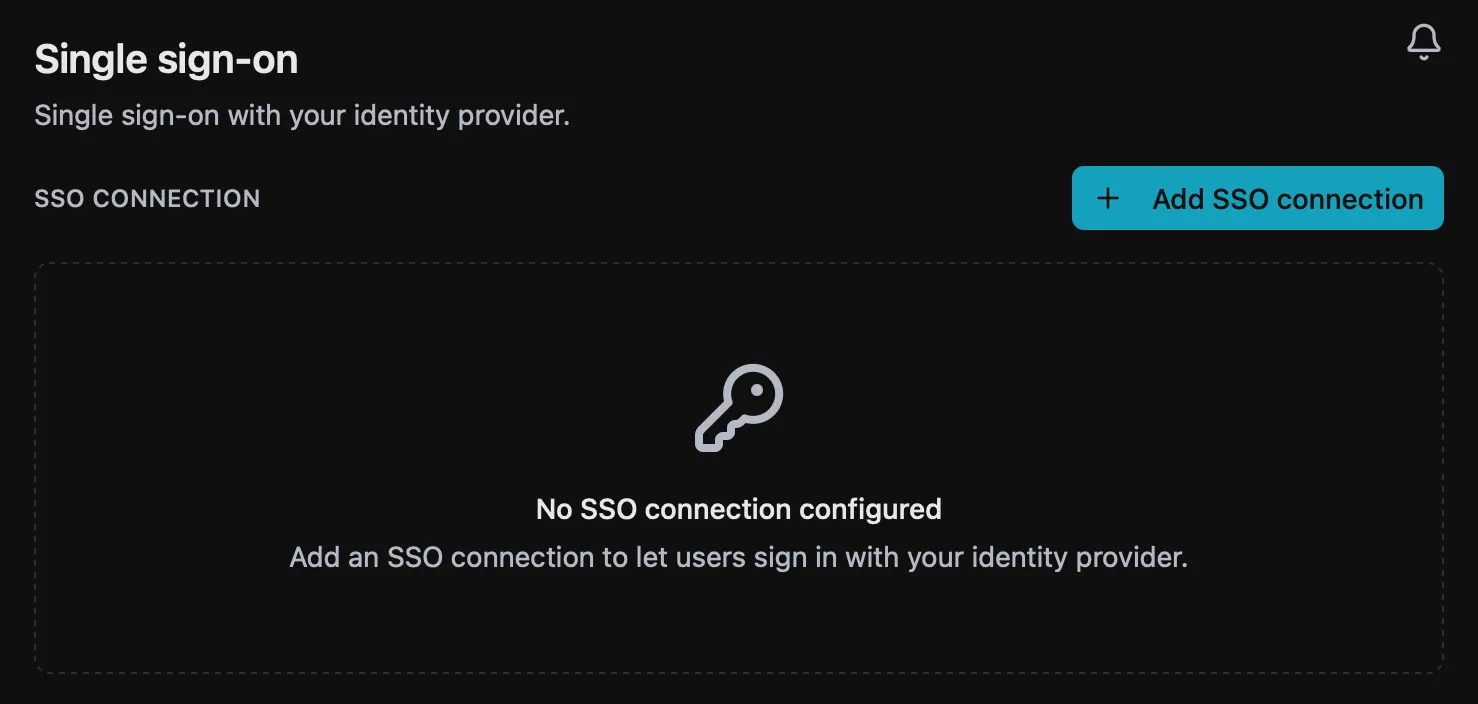
Section titled “1. Start the integration in Dew”In Dew, go to People → SSO and click Add SSO connection to open the setup wizard.
Identity provider: select Okta.
Email domains: add every email domain your Okta users sign in with (for example example.com). Users signing in with these domains will be sent to Okta.
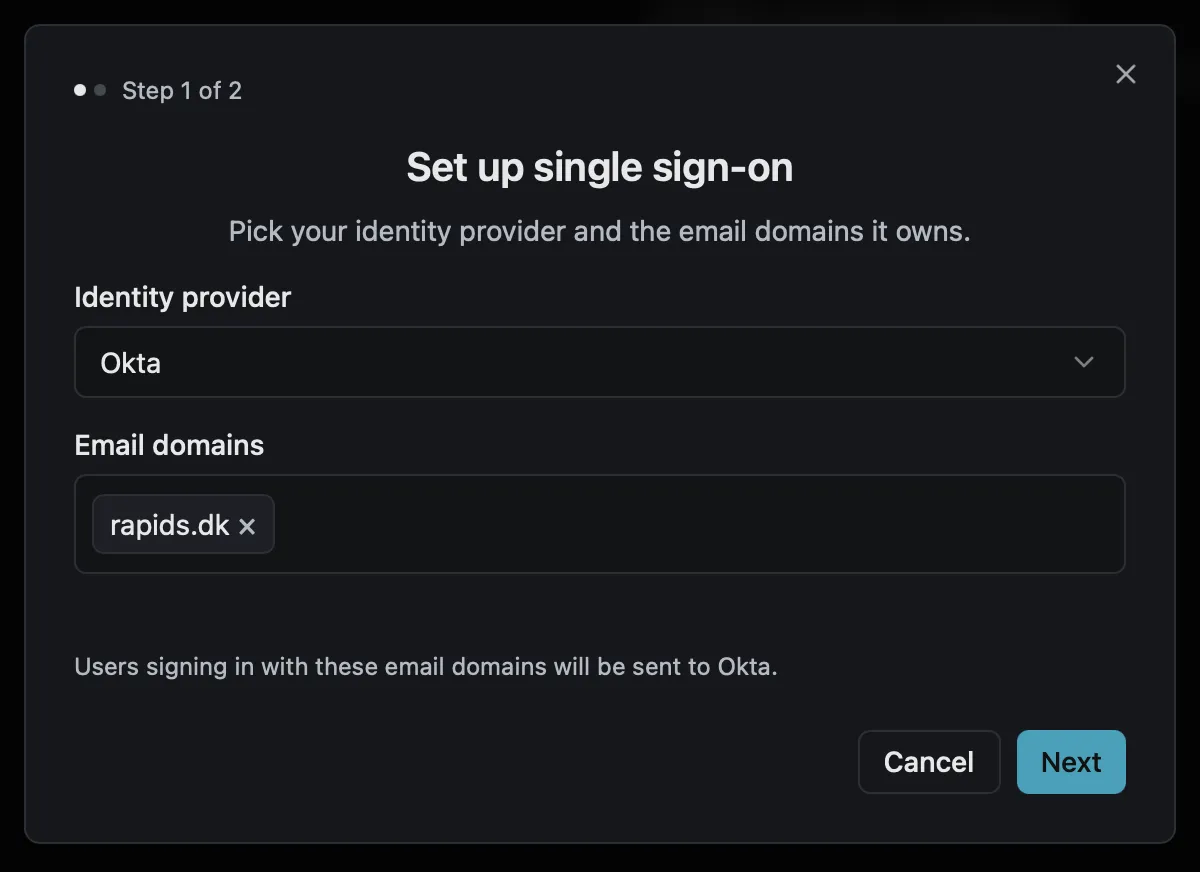
Click Next.
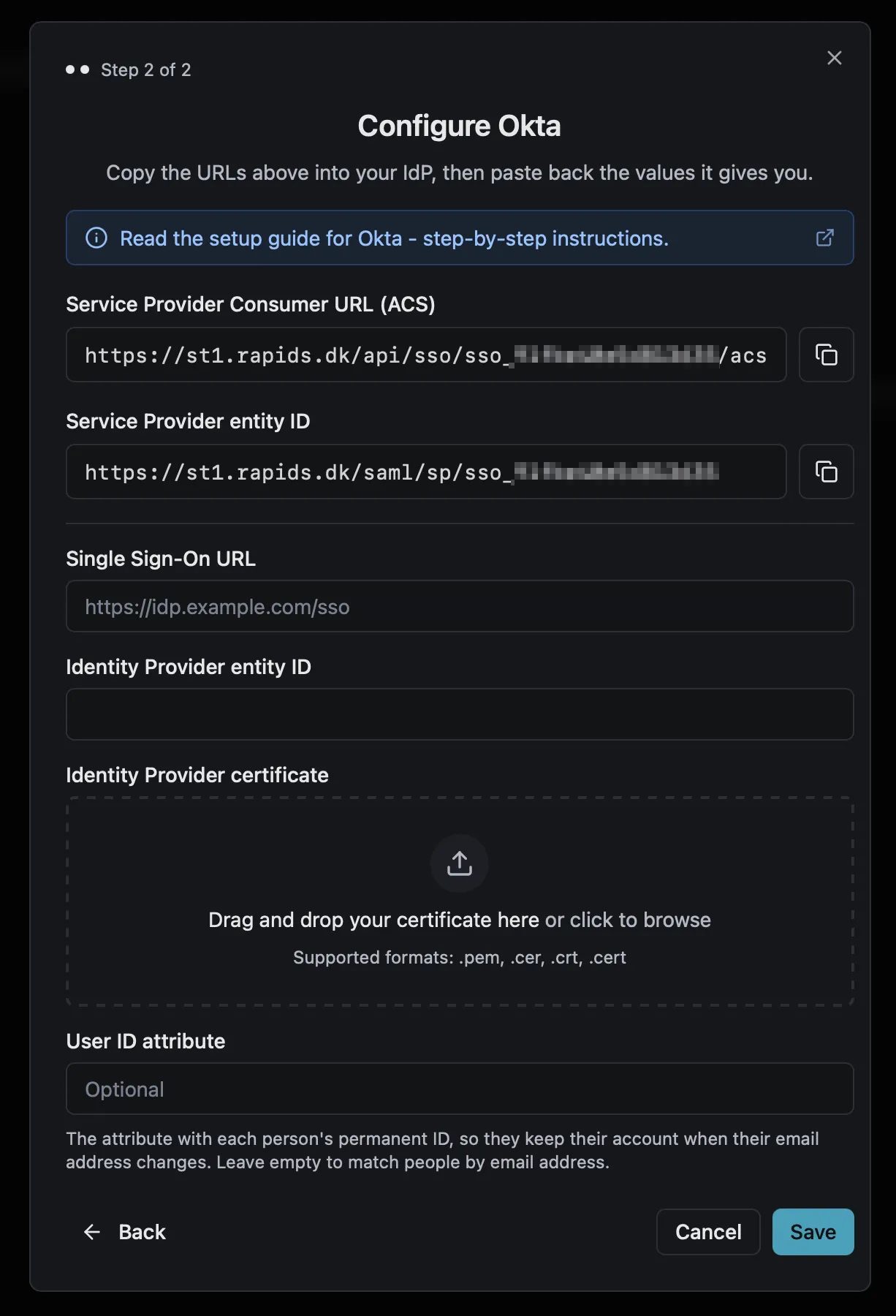
Copy the Dew URLs. Leave the wizard open. Two values on this screen go into Okta in the next step:
- Service Provider Consumer URL (ACS)
- Service Provider entity ID
2. Create the Dew app in Okta
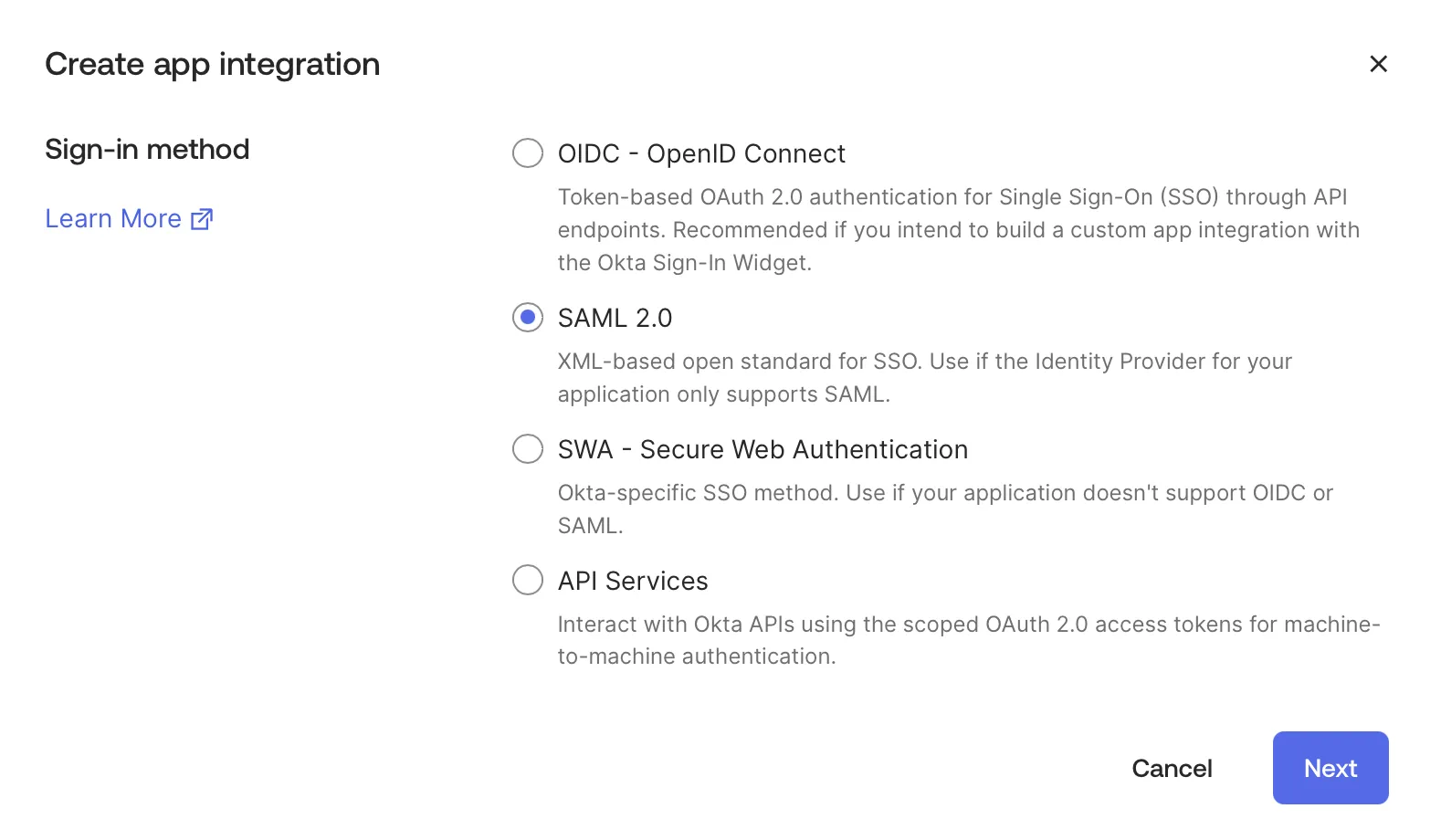
Section titled “2. Create the Dew app in Okta”Open the Okta Admin Console in a new tab and go to Applications → Applications. Click Create App Integration, select SAML 2.0 and click Next.
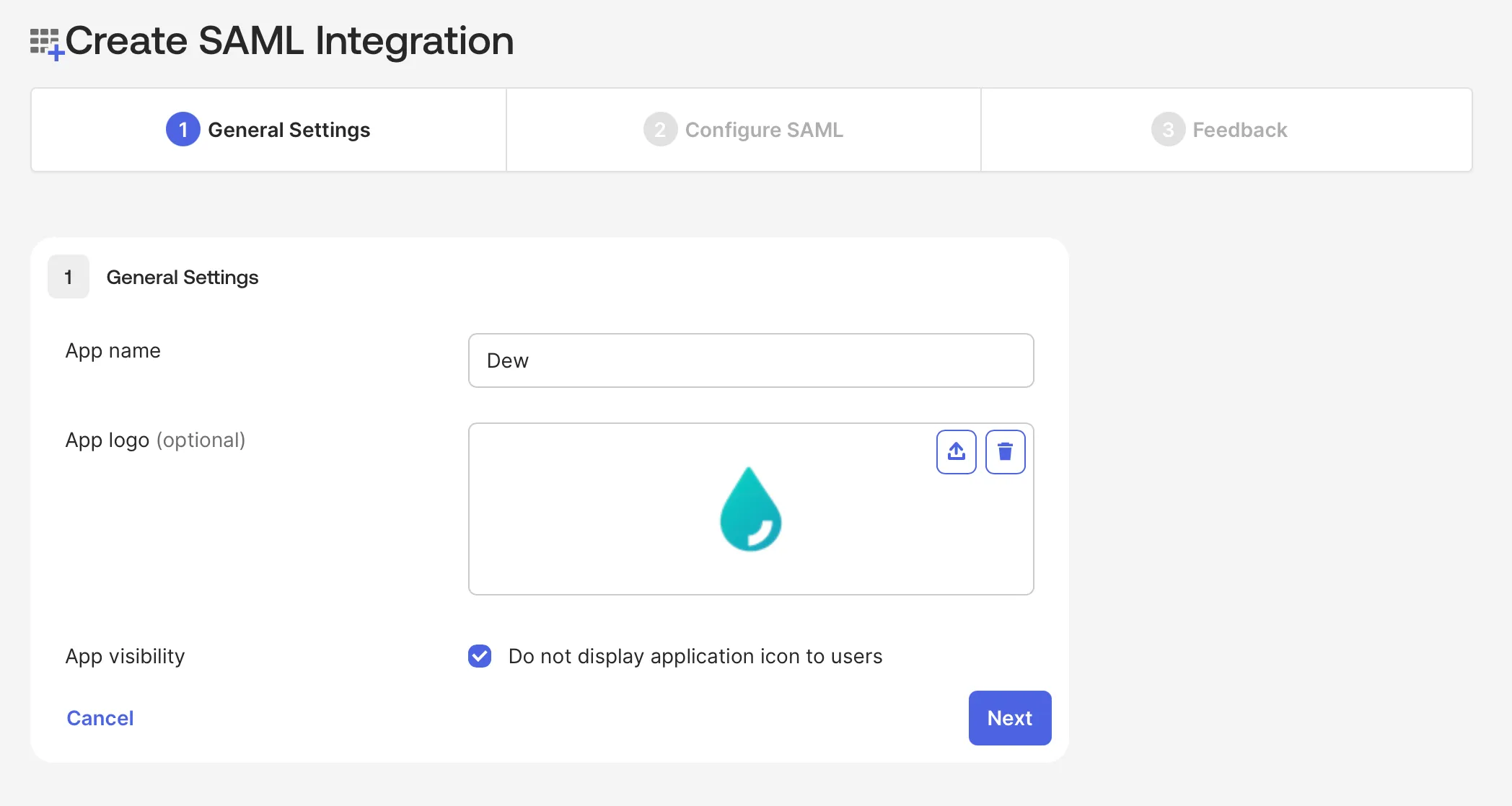
General Settings. Name the app (for example Dew) and optionally upload a logo. Under App visibility, check Do not display application icon to users: Dew only accepts sign-ins that start on the Dew sign-in page, so an Okta dashboard tile for this app would fail. Click Next.
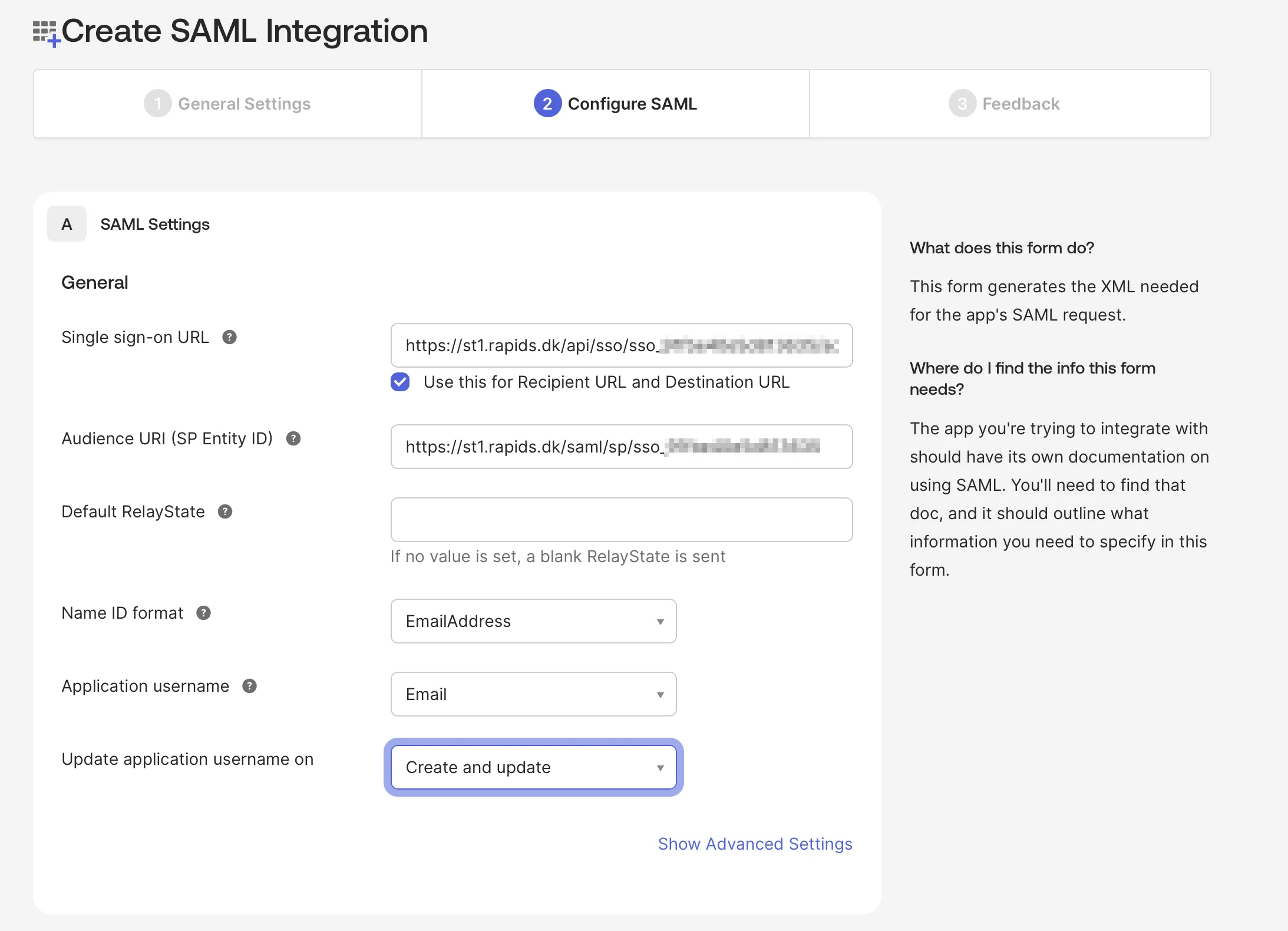
Configure SAML. Fill in the General section using values from the Dew wizard tab:
| Okta field | Value |
|---|---|
| Single sign-on URL | Service Provider Consumer URL (ACS) from the Dew wizard |
| Audience URI (SP Entity ID) | Service Provider entity ID from the Dew wizard |
| Name ID format | EmailAddress |
| Application username | Email |
Leave the other fields at their defaults.
Click Next. On the Feedback page, select This is an internal app that we have created and click Finish. Okta opens the app’s Sign On tab.
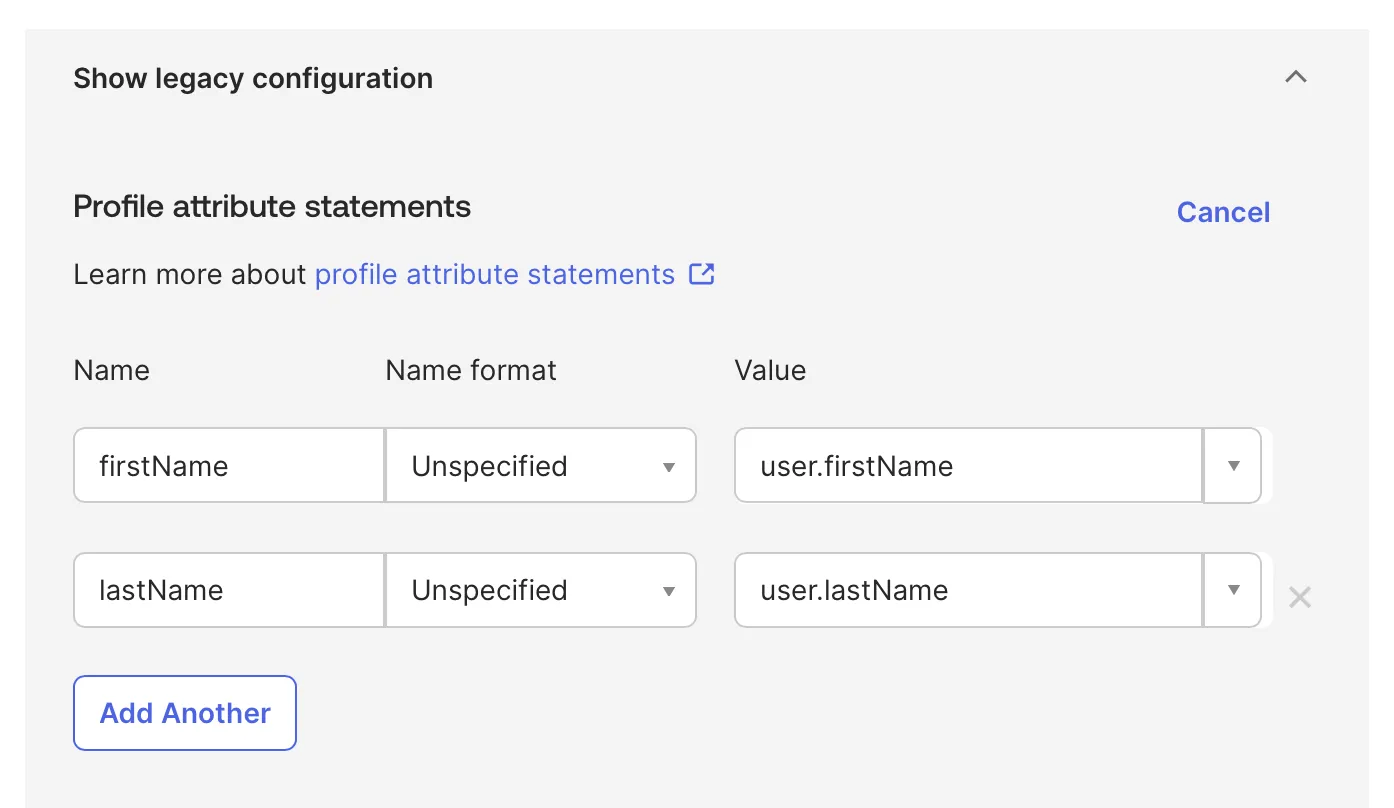
Attribute statements. These send each user’s first and last name to Dew; without them, Dew shows the user’s email address as their name. On the Sign On tab, find Attribute statements and expand Show legacy configuration. Under Profile attribute statements, click Edit. Add two statements and click Save:
| Name | Name format | Value |
|---|---|---|
firstName |
Unspecified | user.firstName |
lastName |
Unspecified | user.lastName |
If you don’t see Attribute statements on the Sign On tab, your Okta org shows them in the app’s SAML Settings instead: click Edit under SAML Settings, go to Configure SAML and add them under Attribute Statements (optional).
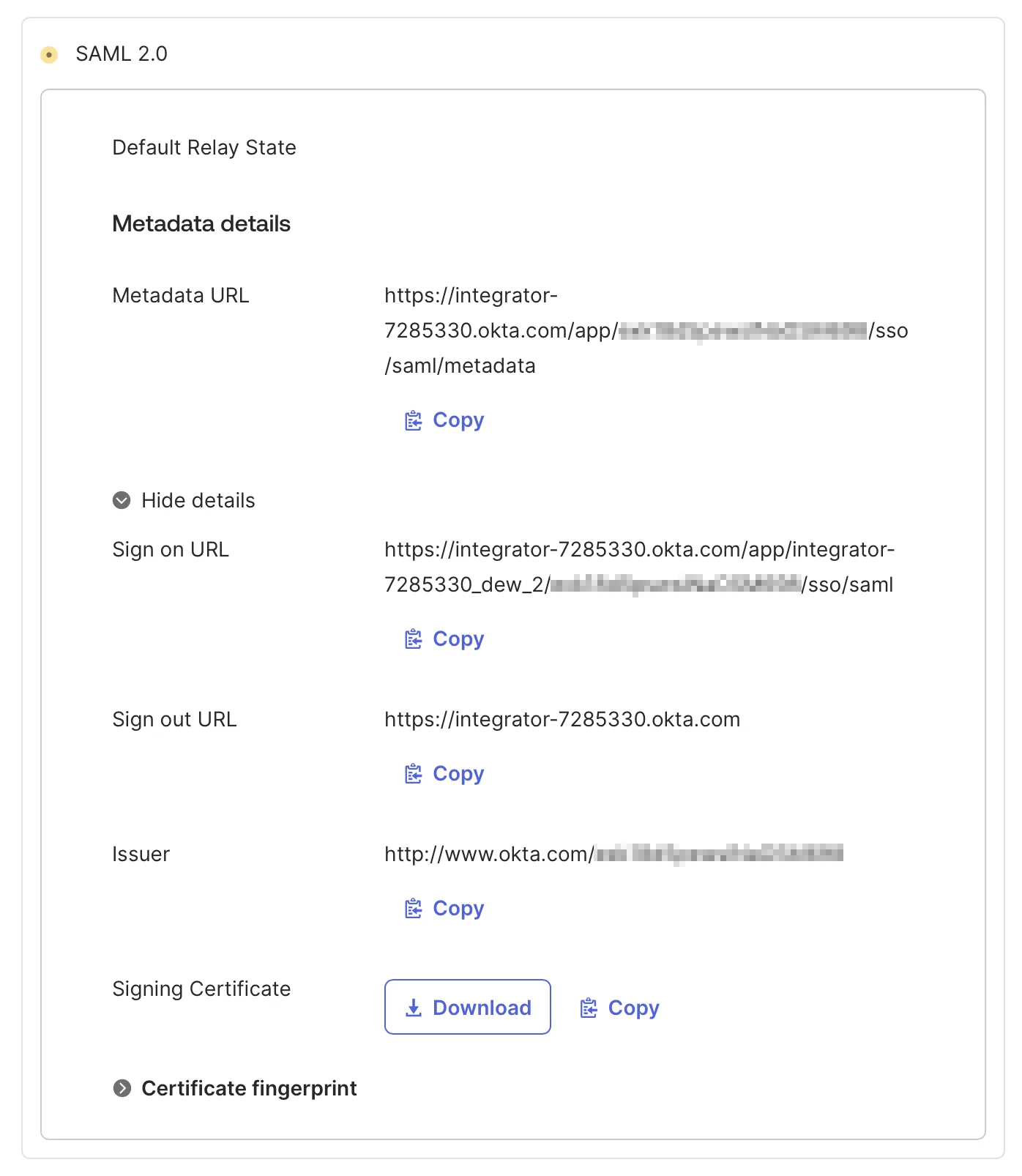
Copy the Okta values. Still on the Sign On tab, under SAML 2.0, click More details. Three values go into Dew in the next part. Keep this tab open:
- Sign on URL
- Issuer
- Signing Certificate: click Download to save the
.certfile.
3. Finish the integration in Dew
Section titled “3. Finish the integration in Dew”Switch back to the Dew wizard and fill in the identity provider fields using the values from Okta:
| Dew field | Okta value |
|---|---|
| Single Sign-On URL | Sign on URL |
| Identity Provider entity ID | Issuer |
| Identity Provider certificate | Drop the downloaded .cert file into the upload area |
| User ID attribute | Leave empty |
With User ID attribute empty, Dew matches people by email address.
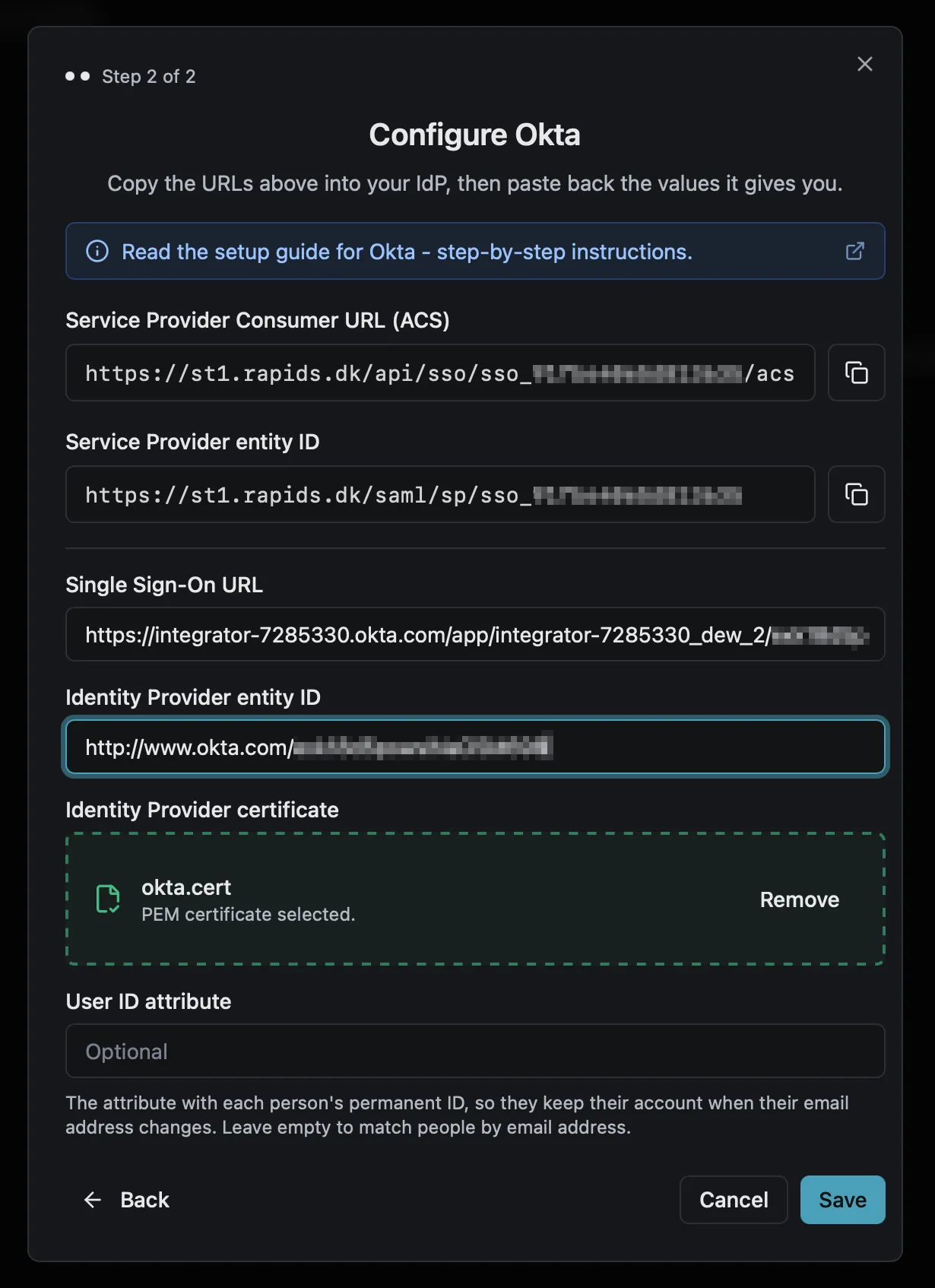
Click Save. The connection now appears on the SSO page with a green dot.
4. Give new users access
Section titled “4. Give new users access”Dew creates an account at a user’s first sign-in only when a Dew domain is open to them: the domain’s access list includes Everyone, or a group that includes everyone at the user’s email domain. Otherwise Dew refuses the sign-in and creates no account.
The first domain you set up in Dew gives Everyone access automatically, so on a new install new users can sign in without any changes here. To check, open Settings → Domains, click ⋮ on the domain and choose Manage access. People with access lists everyone and every group that can use the domain.
To limit Dew to users at one email domain:
- Open People → Groups and click New group. Enter a name and click Create group.
- On the group’s page, click Add by email domain, enter the email domain (for example
example.com), click Preview and confirm. - On the Domains card, click Add domain and choose the Dew domain.
- Open the domain’s Manage access, remove Everyone and click Remove access.
Access changes apply straight away, also for users who already have an account.
If you set up SCIM (part 7), Okta creates the accounts instead, and you can give access by Okta group.
5. Assign users in Okta
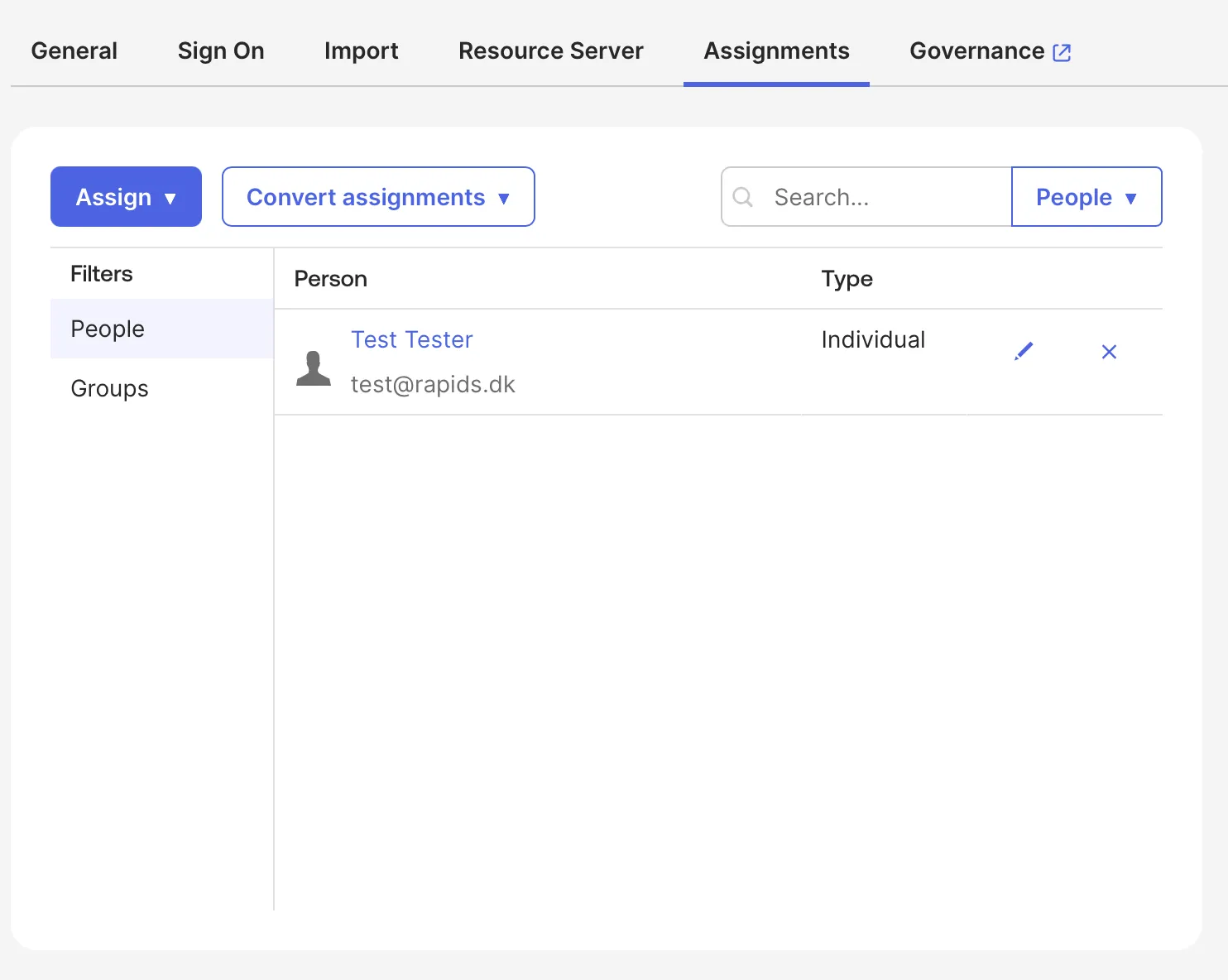
Section titled “5. Assign users in Okta”Only people and groups assigned to the app can sign in to Dew. In the Okta app, open the Assignments tab and click Assign → Assign to People or Assign → Assign to Groups.
Click Assign next to each person or group, then Done.
To give users a tile on their Okta dashboard anyway, add a Bookmark App in Okta that points to your Dew sign-in page, for example https://dew.example.com/login, and assign it to the same people.
6. Test the sign-in
Section titled “6. Test the sign-in”Open the Dew sign-in page in a private or incognito window and enter the email address of an assigned user. You should be sent to Okta, asked to sign in, and returned to Dew signed in.
Test with an account other than the owner, the account created when Dew was set up and marked Owner in the Role column of the users list. The owner always signs in with their Dew password, so you can still get in if Okta stops working.
To stop users in your email domains from signing in with a local Dew password, open People → SSO and select SSO required in the Enforcement card. Leave it on SSO optional until a test sign-in works.
7. Optional: provision users with SCIM
Section titled “7. Optional: provision users with SCIM”SCIM lets Okta create Dew accounts for assigned users, keep names and email addresses up to date, and deactivate people you unassign or deactivate in Okta. It also lets you give Dew access by Okta group. SCIM needs an Enterprise license.
Turn on SCIM in Dew
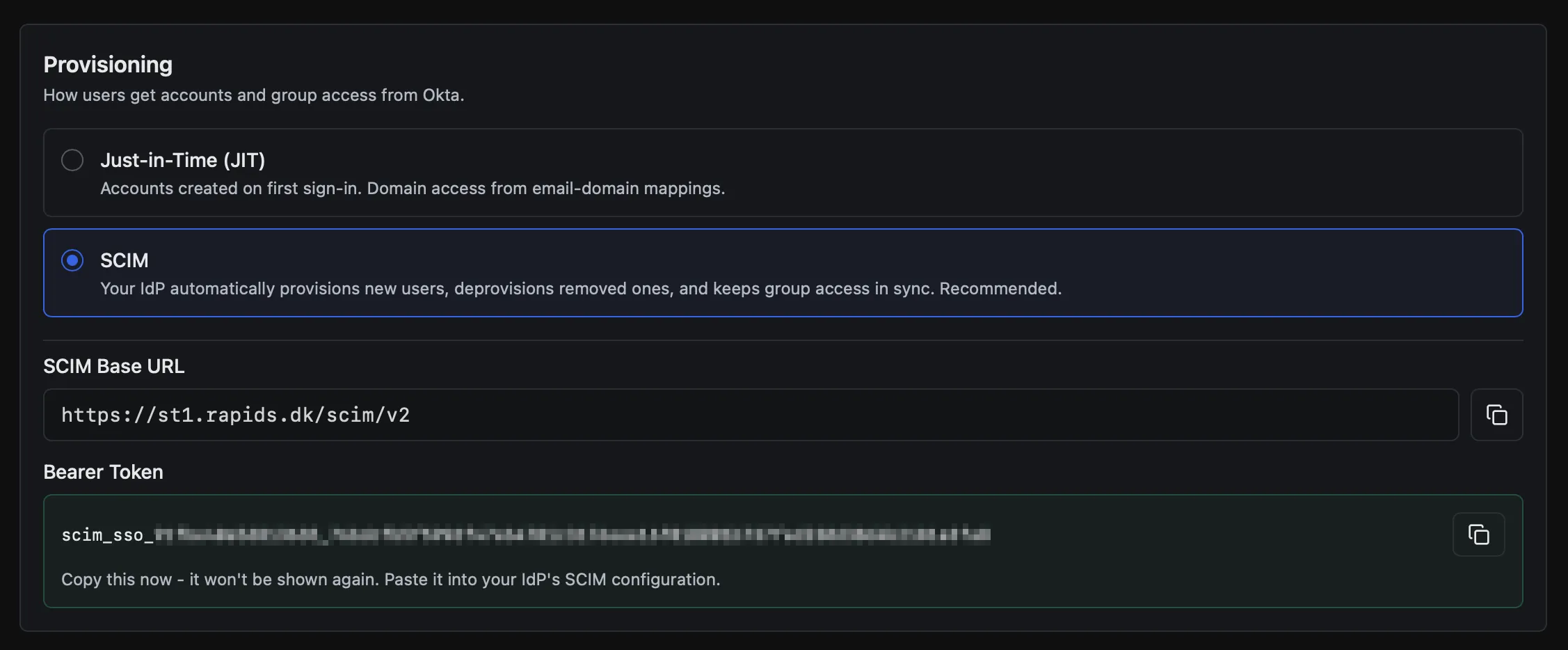
Section titled “Turn on SCIM in Dew”In Dew, open People → SSO and select SCIM in the Provisioning card. Dew shows two values; copy both:
- SCIM Base URL
- Bearer Token. It is shown only once; if you lose it, click Regenerate token.
Turn on provisioning in Okta
Section titled “Turn on provisioning in Okta”In the Okta app, open the General tab. Under App Settings, click Edit, set Provisioning to SCIM and click Save.
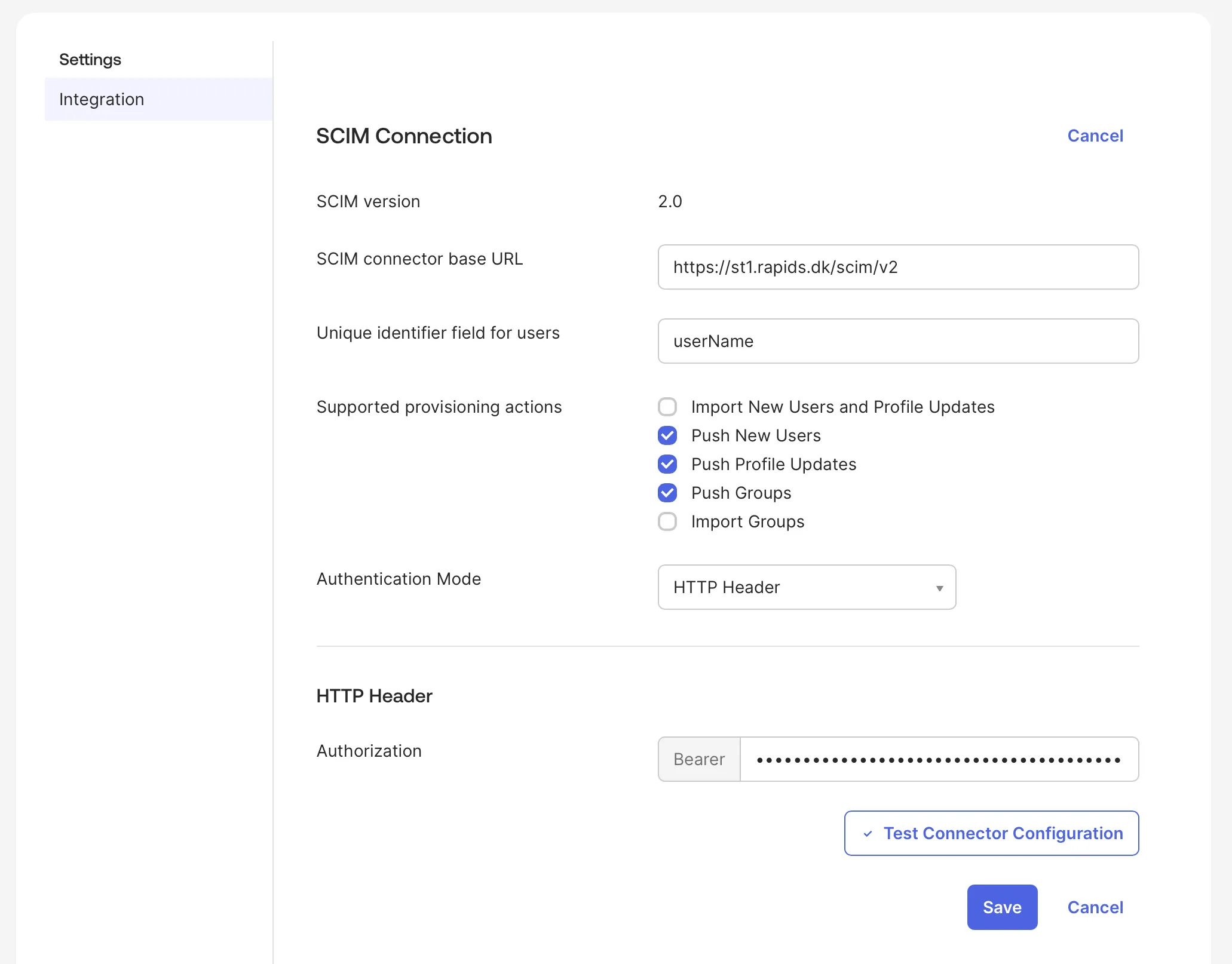
A Provisioning tab appears. Open it, select Integration and click Edit:
| Okta field | Value |
|---|---|
| SCIM connector base URL | SCIM Base URL from Dew |
| Unique identifier field for users | userName |
| Supported provisioning actions | Check Push New Users, Push Profile Updates and Push Groups |
| Authentication Mode | HTTP Header |
| Authorization (Bearer) | Bearer Token from Dew |
Click Test Connector Configuration, close the result, and click Save.
Select To App and click Edit. Enable Create Users, Update User Attributes and Deactivate Users, then click Save.
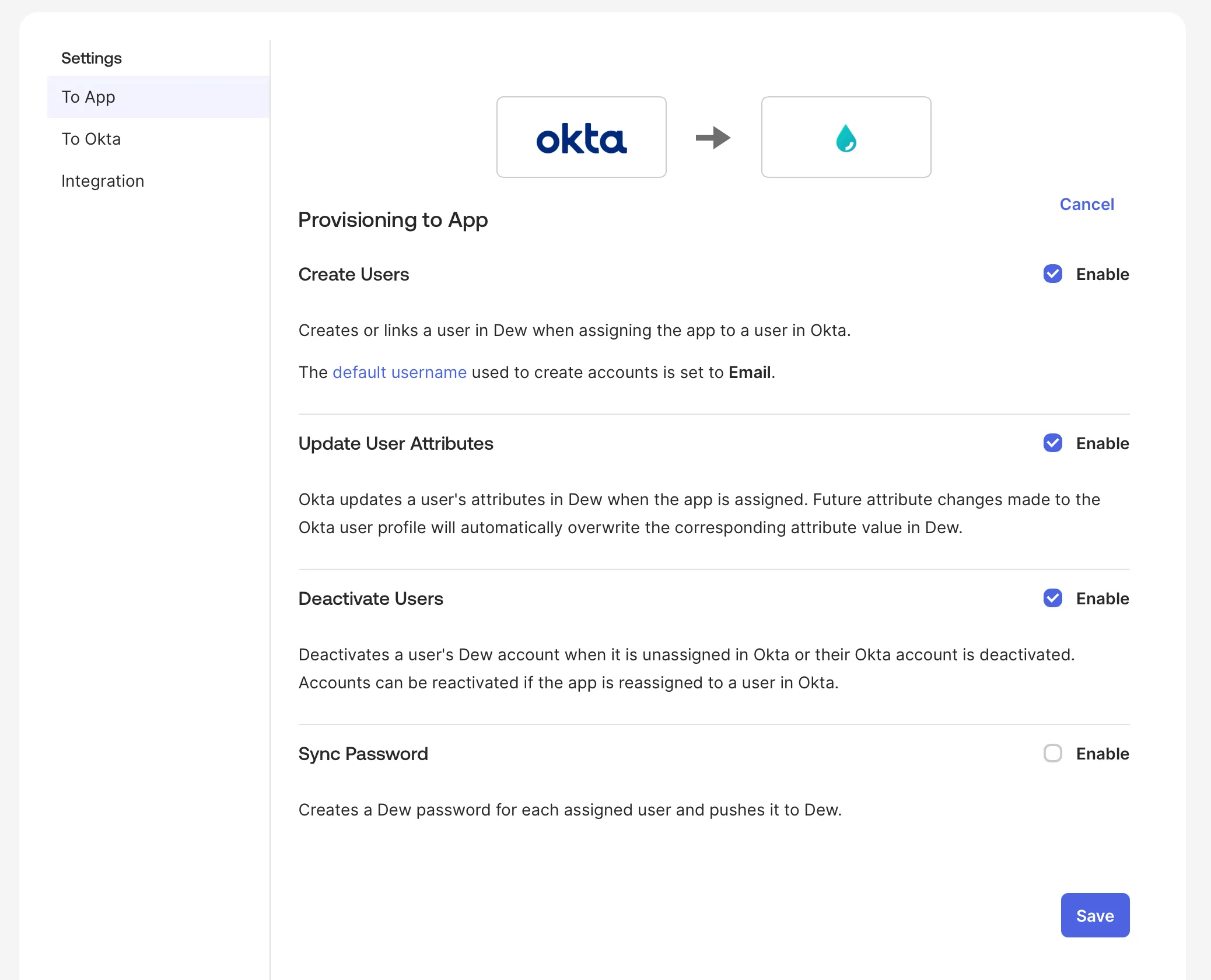
Okta now creates a Dew account for everyone already assigned to the app, and for everyone you assign later.
Push Okta groups to Dew
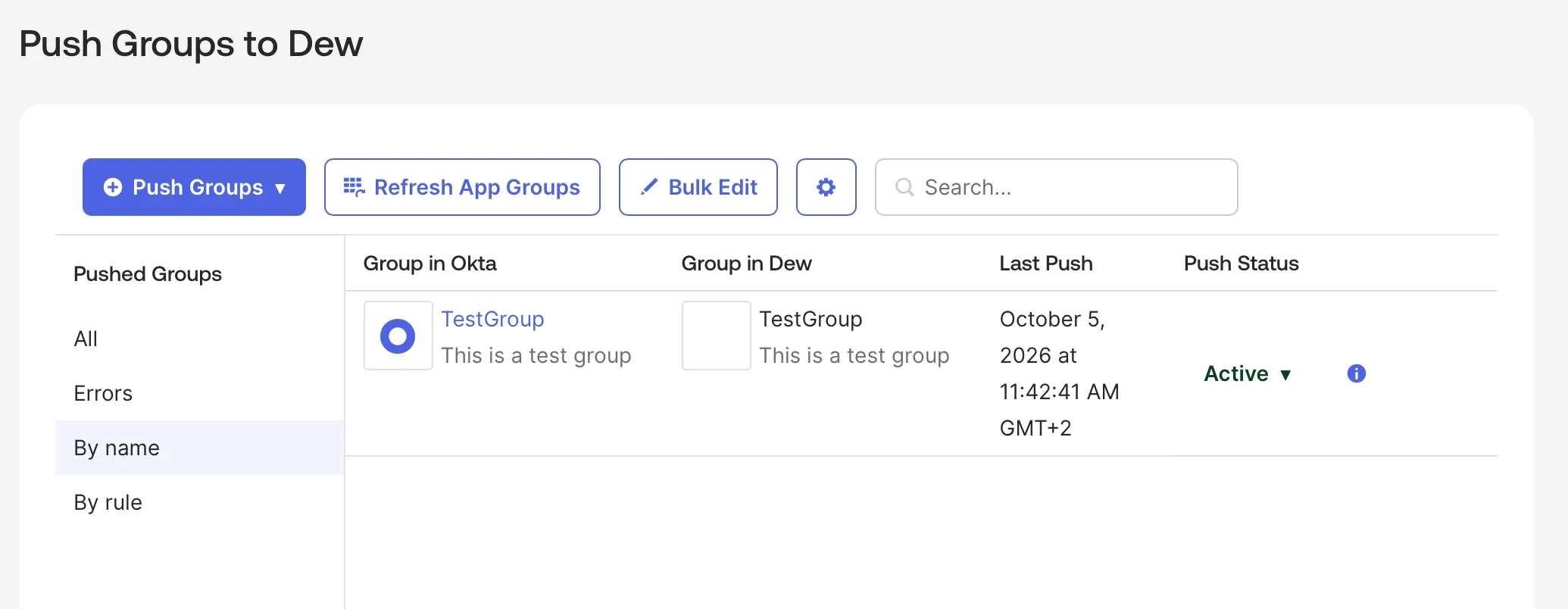
Section titled “Push Okta groups to Dew”Okta sends groups to Dew only when you push them. Open the Push Groups tab, click Push Groups → Find groups by name, pick a group and click Save. Repeat for each group you want to use in Dew.
Give Okta groups access to Dew domains
Section titled “Give Okta groups access to Dew domains”Pushed groups appear in Dew under People → Groups. To give a group access to a Dew domain:
- In Dew, open People → Groups and click the pushed Okta group.
- On the Domains card, click Add domain and choose the Dew domain.
- Repeat for each group.
You can also add the group from the domain’s Manage access on Settings → Domains.
Everyone includes users provisioned by SCIM. To limit a domain to your Okta groups, remove Everyone from the domain’s Manage access and add the groups instead. Users who reach no domain can’t sign in.
How group sync works
Section titled “How group sync works”Okta keeps the groups you push in sync with Dew, and Dew updates the access they give as soon as each change arrives.
- Members: when you add someone to the group in Okta or remove them, Okta makes the same change in Dew. The group’s page in Dew says “Managed in your identity provider”, and you can’t add or remove its members in Dew.
- New members: a person has to be provisioned to Dew before they can join a Dew group. If Okta pushes a group member Dew doesn’t have yet, Dew refuses that change and Okta’s provisioning log shows
member "<id>" is not provisioned for this connection. - Renames: renaming the group in Okta renames it in Dew.
- Deleted groups: when Okta deletes the group in Dew, its members and the access it gave are removed. If Okta pushes it again later, it’s a new group: give it access again.
- Switching off SCIM: if you choose Just-in-Time (JIT) in the connection’s Provisioning card and confirm with Switch to JIT, or delete the connection, the groups become Local groups. They keep their members and access, and you can edit them in Dew. If another Dew group already has the same name, Dew adds the group’s Okta ID to the name in brackets.
- Plan changes: if your license no longer includes SCIM, the groups stop updating but keep their members and access. Their page says “Not syncing. Single sign-on provisioning is not included in your plan.”
Replace the signing certificate
Section titled “Replace the signing certificate”Replace the Okta signing certificate before it expires. The connection card in Dew lists each certificate with its expiry date, which turns amber 30 days before. Dew keeps trusting the current certificate until you remove it, so sign-in keeps working while you switch.
- In Okta, open the app’s Sign On tab. Under SAML Signing Certificates, click Generate new certificate.
- Download the new certificate.
- In Dew, choose Update certificate in the connection’s menu, drop the downloaded file into New certificate and click Save. The connection card now lists Certificate and Previous certificate.
- In Okta, activate the new certificate if it isn’t active yet.
- Test the sign-in (part 6). Then in Dew, click Remove next to Previous certificate and confirm with Remove certificate. If you leave it, Dew removes it when it expires.
Troubleshooting
Section titled “Troubleshooting”Most refused sign-ins are listed in the Recent sign-in problems card on People → SSO, with the reason. Errors Okta shows never reach Dew, and a sign-in that didn’t start on the Dew sign-in page shows its message only on the sign-in page.
| What you see | What to do |
|---|---|
| Okta says the user isn’t assigned to the app | Assign the person, or one of their groups, to the app. See part 5. |
| “The identity provider refused the sign-in” | Same as above: Okta refused the user, most often because they aren’t assigned. |
| The sign-in page shows “To sign in with single sign-on, start from the Dew sign-in page” | The user opened Dew from an Okta tile. Hide the app’s tile (part 2) and use a Bookmark App instead (part 5). |
| “The identity provider’s response was rejected” | The certificate or URLs don’t match. Check Audience URI against Service Provider entity ID (View details on the Dew connection), download the signing certificate again and upload it with Update certificate in the connection’s menu. |
| “The identity provider didn’t send an email address” | Set Name ID format to EmailAddress and Application username to Email on the Okta app’s SAML Settings. |
| “The user signed in to the identity provider with a different email address” | The user signed in to Okta as someone else, or their Okta email differs from the one they typed. Check Application username is Email. |
| “No account was created because no domain is open to everyone or to the user’s email domain.” | Add Everyone, or a group for that email domain, to a domain’s Manage access. See part 4. |
| “The account has no domain access” | Give the user a domain. With SCIM, push one of the user’s groups and add it to a domain (part 7). |
| Test Connector Configuration fails | Check the SCIM connector base URL has no extra path, and regenerate the Bearer Token in Dew if you are unsure it was copied in full. |
For more detail, open System → System → Error logs in Dew and filter by SSO. When contacting support, include the problem shown in Recent sign-in problems.