
Create your admin account
A new Dew server asks for its setup code before anyone can create the admin account. You find the code in the server’s log, enter it in the browser, and then create the account you’ll manage Dew with.
If Dew sits behind a reverse proxy, first tell Dew the proxy’s address.
1. Find the setup code
Section titled “1. Find the setup code”Dew prints the setup code in its log each time it starts, until the admin account exists. It looks like this:
To see it:
- Docker on Linux, Mac or Windows: run
docker logs dew. On Linux, usesudo docker logs dewif your user isn’t in thedockergroup. - Synology: in Container Manager, select Container, select the dew container, then open Log.
- From the data folder: open
config/setup-codeinside Dew’sdatafolder.
The code stays the same when Dew restarts. Click Where do I find it? on the setup page to see these places again.
2. Enter the code
Section titled “2. Enter the code”Open your server’s address in a browser. Dew opens on Step 1 of 2, Enter your setup code.
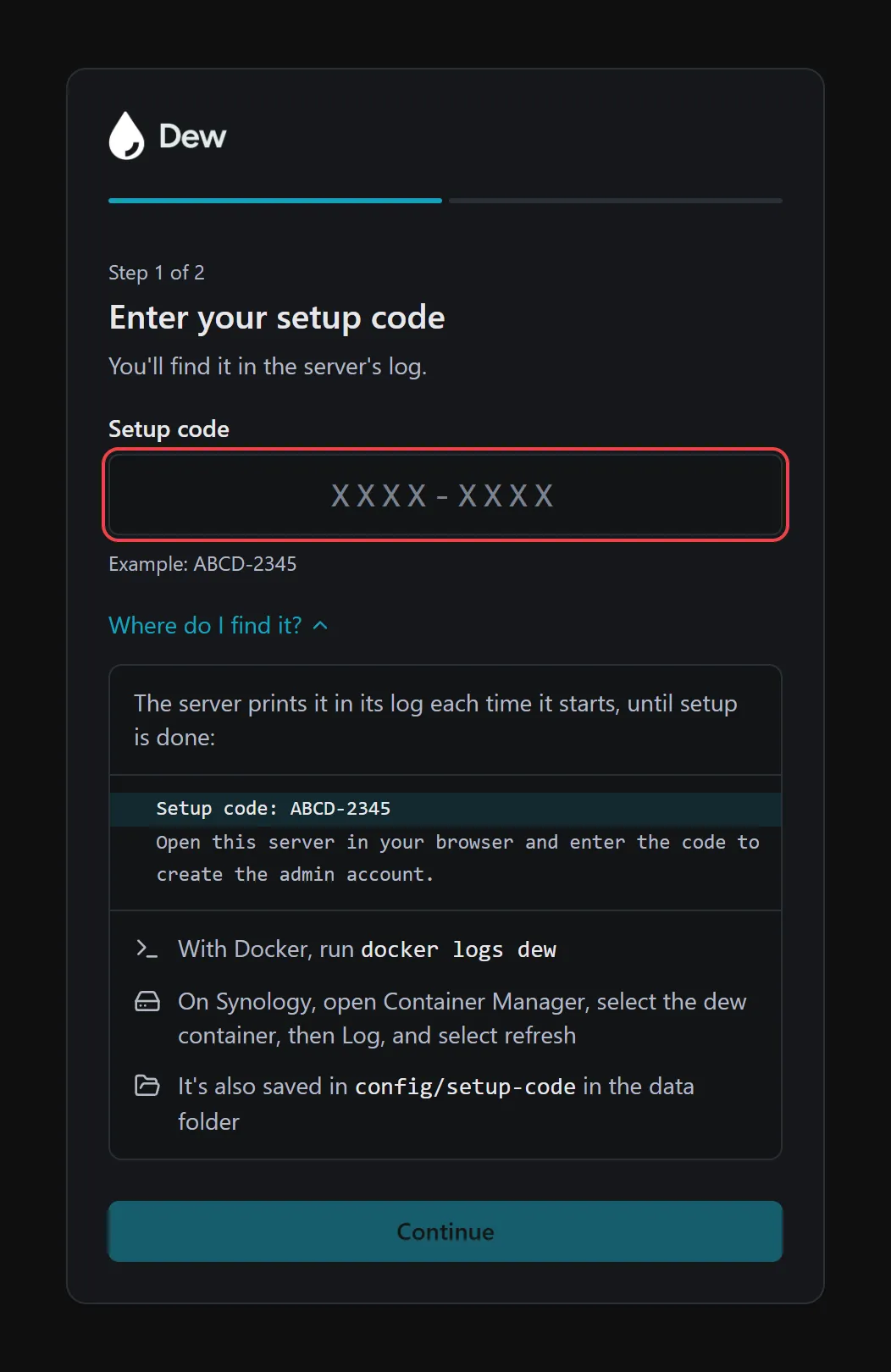
- In Setup code, enter the code, for example
ABCD-2345. You can type it with or without the dash, in capital or small letters. - Click Continue.
When the code is right, the field shows Code accepted and Dew moves to Step 2 of 2, Create your admin account.
3. Create your admin account
Section titled “3. Create your admin account”The first account on a new Dew server is its administrator.
- In Name, enter your name. Dew shows it in the app and in emails it sends.
- In Email, enter the address you’ll sign in with.
- In Password, enter a password. The line below the field shows what it needs:
Use at least 10 characters with uppercase and lowercase letters, a number and a symbol. - In Confirm password, enter the same password again.
- Click Create account.
Dew shows Your admin account is ready and You’re signed in as your email address. You don’t need to sign in again.
This account can always sign in with its password, even if you later require single sign-on for everyone. Keep the password in a safe place.
Click Set up domain to choose the address people will use to open Dew. Continue with Set up a domain and HTTPS.
Behind a reverse proxy
Section titled “Behind a reverse proxy”If a reverse proxy sits in front of Dew, tell Dew its address before you enter the setup code. Otherwise Dew sees every visitor as the proxy, and wrong codes typed by anyone count against you.
With Docker on Linux, Mac or Windows:
-
Open
compose.yamlin thedewfolder. -
Add the proxy’s IP address or range under
environment:in thedewservice. If thedewservice has noenvironment:line, add one below theports:lines, lined up withports:. Otherwise add the new line under the existing one: -
Run
docker compose up -din thedewfolder.
On a Synology NAS:
-
In Container Manager, select Project, select the dew project and stop it.
-
Edit the project’s YAML. Under the existing
environment:line, below- DEW_HTTPS_PORT=8843, add the proxy’s address lined up with it: -
Save the change, then build and start the project again.
To list more than one address or range, separate them with commas. For the full proxy setup, see Run Dew behind a reverse proxy.
If something goes wrong
Section titled “If something goes wrong”| What you see | What to do |
|---|---|
That setup code isn't right. Check the server's log and try again. |
Copy the code again from the newest Setup code: line in the log, then click Continue. |
Too many attempts. Try again later. |
After 10 wrong codes, Dew stops accepting new tries for up to 15 minutes. Wait, then enter the code again. |
| The browser opens a sign-in page instead of Enter your setup code | The admin account already exists. Sign in with it, or ask the person who set up the server to invite you. |
Use at least 10 characters with uppercase and lowercase letters, a number and a symbol. |
Choose a password that meets every part of the rule, then click Create account again. |
Passwords don't match. |
Enter the same password in Password and Confirm password. |
Enter an email address like name@example.com. |
Check the email address for typos. |
Enter your name. |
Fill in Name. |
| The log shows no setup code | Dew may still be starting. Wait a moment and check the log again. |
| The browser can’t reach the server | Check that Dew is running and that your firewall allows the port it uses: 443, or 8843 on Synology. |
For later problems, open System → System → Error logs in Dew. Each error has a reference such as REF-a3f8b2c1 that you can quote when you contact support at support@getdew.io.