
Invite your team
Invite people by email so each one sets their own password and signs in to Dew. Dew has no public sign-up, so only people you add get an account. You can also create accounts yourself or import many at once from a CSV file. Sending invitations needs email set up first; creating accounts and importing a CSV file work without it.
1. Send invitations
Section titled “1. Send invitations”- Go to People → Users.
- Click Add User. The dialog opens on the Invite tab.
- In Recipients, enter one or more email addresses. Separate them with commas, semicolons or new lines, or paste a whole list.
- Optional: in Groups, choose the groups the new users join.
- Optional: if your server has more than one domain, choose one in Send from. The invitation uses that domain’s branding, email configuration and address.
- Leave Administrator off for regular team members. Administrators get full access to all admin settings.
- Click Send invite (or Send 3 invites, with the number of recipients).
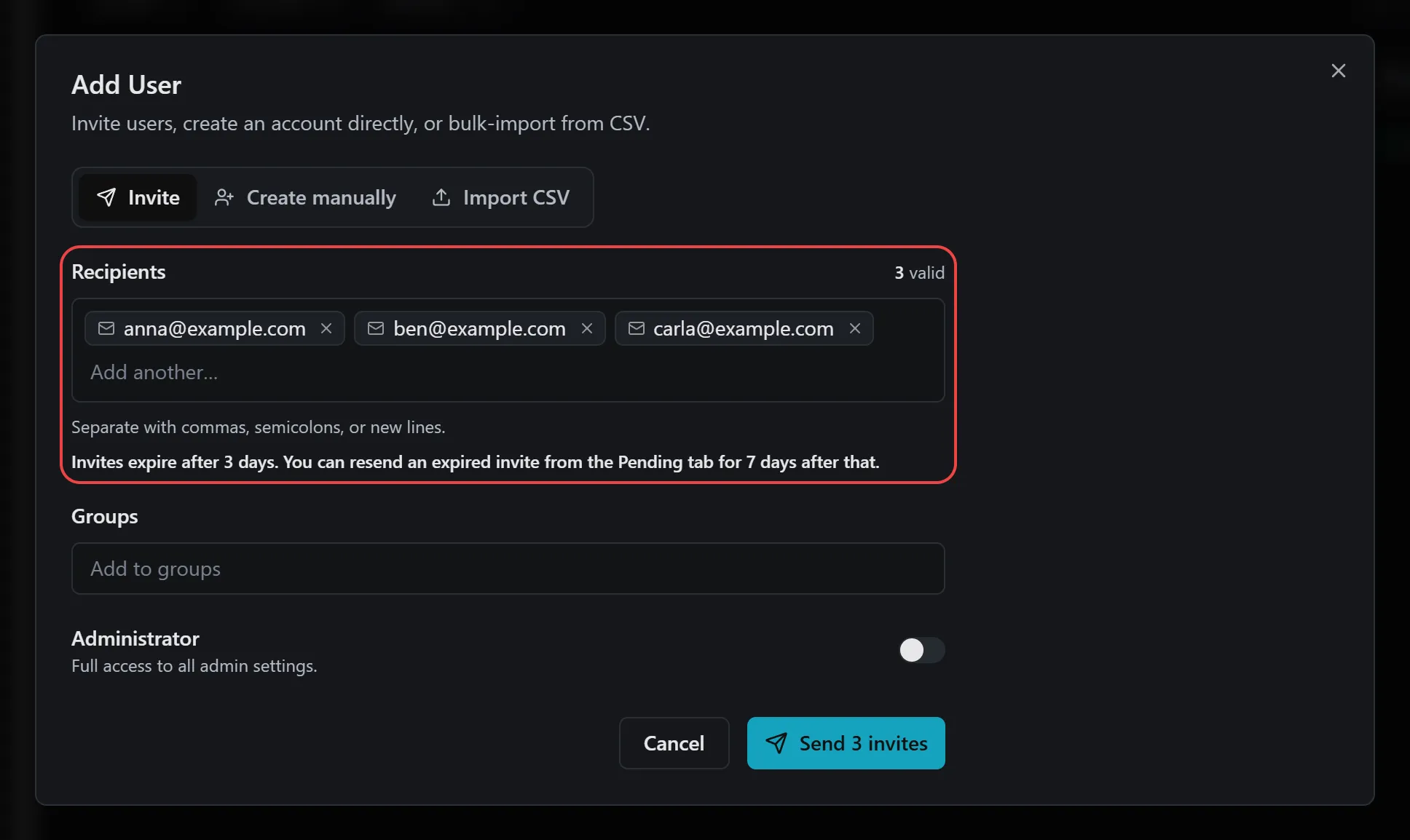
The dialog confirms how many invitations were sent. The new invitations appear on the Pending tab of People → Users.
2. What the invited person does
Section titled “2. What the invited person does”Each person gets an email with a personal link. The link opens a Complete your account page:
- They enter their First name and Last name.
- They choose a Password and enter it again in Confirm password. By default, a password needs at least 10 characters with uppercase and lowercase letters, a number and a symbol. The page shows the rule your server uses.
- They click Create account. Dew usually signs them in right away. Otherwise they see “Your account is ready. Taking you to sign in…” and sign in.
Once they finish, they move from the Pending tab to the Active tab.
3. Check it worked
Section titled “3. Check it worked”On People → Users, the person is listed on the Active tab and can sign in at your server’s address.
Next, share your first link.
Resend or revoke an invitation
Section titled “Resend or revoke an invitation”Invitations expire after 3 days. An expired invitation stays on the Pending tab for 7 more days, so you can still resend it.
- Go to People → Users and open the Pending tab.
- Click the ⋮ menu on the invitation.
- Choose one:
- Resend invitation: emails a new link, valid for another 3 days.
- Revoke: the link stops working right away.
Other ways to add users
Section titled “Other ways to add users”Both options are tabs in the Add User dialog:
- Create manually: you enter the Display name, Email and Password yourself, and optionally Groups and Administrator. No email is sent, so give the person their password yourself.
- Import CSV: add many users from a spreadsheet. Click Download template to get a file with the right columns (
displayname,email,password,is_admin,domain_hostnames). Dew checks every row before importing, and you can download the rows that failed afterwards.
User limit on the Free plan
Section titled “User limit on the Free plan”The Free plan includes 5 users, and pending invitations count toward the limit. When you are close to the limit, People → Users shows “Approaching user limit (4/5). Consider upgrading.” When you reach it, clicking Add User opens User limit reached (5/5) with a Manage license button. Paid plans include more users. See System → System → License.
Manage users later
Section titled “Manage users later”On the Active tab, the ⋮ menu on each user offers:
- Disable or Enable: turn the account off or back on.
- Change role: Member or Admin. The server owner can also make another local admin the owner here.
- Manage access: groups and access for this user.
- Reset Password: set a new password yourself, or email a reset link that expires in 24 hours.
- Disable 2FA: when the user has lost their authenticator app.
- Remove profile picture: when the user has one.
- Delete: permanently delete the account.
Users who sign in with SSO see Convert to local and Unlink SSO identity instead of Reset Password. The server owner can’t be disabled or deleted.
If something goes wrong
Section titled “If something goes wrong”| What you see | What to do |
|---|---|
Set up email to send invitations. |
No email configuration is set up. Follow Set up email, then send the invitation again. |
| The person opens the link and sees “This invitation has expired” | Resend the invitation from the Pending tab. |
| The person opens the link and sees “This invitation link isn’t valid” | The invitation was revoked, replaced by a newer one, or the link was copied incompletely. Resend the invitation and ask them to use the newest email. |
| The person sees “This invitation has already been used” | The account already exists. Ask them to sign in. |
User limit reached (5/5, including pending invites). Revoke unused invites or upgrade your license to add more users. |
Revoke invitations you no longer need from the Pending tab, or upgrade on System → System → License. |
| The person never got the email | Ask them to check spam, then use Resend invitation. Check that your email provider allows sending from your From address (SPF and DKIM). |
For more detail, go to System → System → Error logs. Each failed request has a reference number you can quote when you contact support@getdew.io.