
Share your first link
Upload a file in Dew, copy the link and send it to anyone, who can download the file in any browser without an account. Doing this once also shows that your new server works from start to finish.
1. Upload a file
Section titled “1. Upload a file”- In the sidebar, click Upload. This is also where you land after signing in, on the Upload files page.
- Leave the link type on Public. The page explains: “Anyone who receives the link can download the file.”
- Drag a file onto Drop files or folders here, or click browse files to choose one. To send a whole folder, click folders.
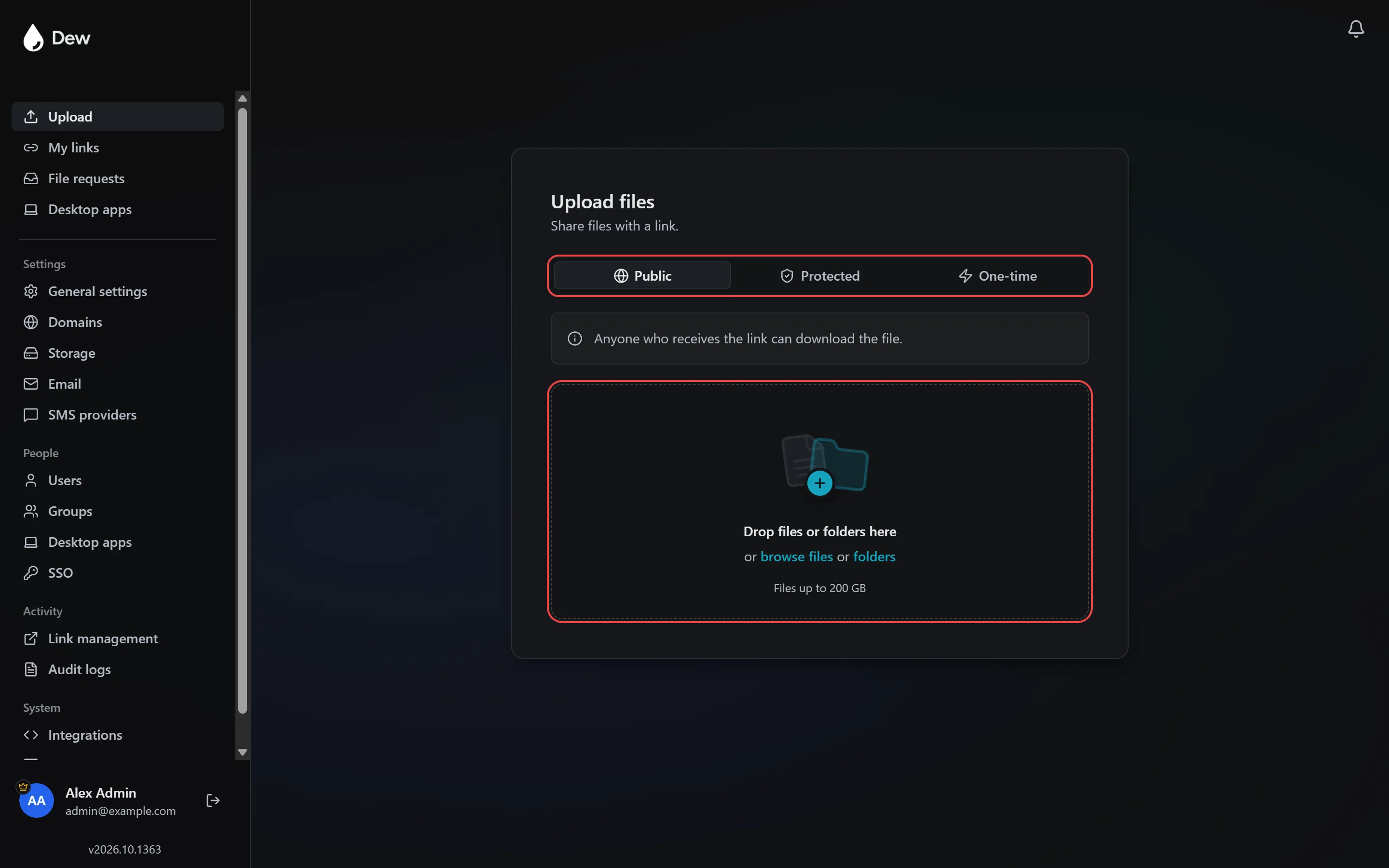
The upload starts right away. A progress ring shows the percentage, the speed and the time left. The drop zone’s “Files up to …” line shows the largest total one upload can be on your server.
If you choose several files or a folder, they go up together and share one link.
2. Copy the link
Section titled “2. Copy the link”When the upload finishes, you see Upload Successful and the link.
- Click the copy button next to the link. Its tooltip changes to Copied.
- Optional: if your server sends email, turn on Download receipt to get an email the first time the file is downloaded.
To send something else, click Upload another.
3. Send the link
Section titled “3. Send the link”Paste the link into an email or chat message. The recipient opens it in any browser and downloads the file. They don’t need an account or an app.
4. Check it worked
Section titled “4. Check it worked”In the sidebar, click My links. Your link is listed with its expiry date. If you turned on Download receipt, you get an email when the recipient first downloads the file.
From My links you can copy the link again. The ⋯ menu on each link also offers Download, Edit link settings, Change expiry date and Delete.
Protect a link
Section titled “Protect a link”To protect a link, choose a link type other than Public before you upload:
- Protected: the recipient needs a password to download. If your server sends email, you can choose Email instead, and each recipient gets their own link by email, then enters a code Dew emails them when they open it. If your administrator has set up SMS, you can choose SMS, and the recipient gets a code by text message.
- One-time: the link works for one download.
- Private: downloads only from approved networks. It appears when your administrator has set it up.
Where to go next
Section titled “Where to go next”- Share from your desktop: install the desktop app, or get it from the download page.
If something goes wrong
Section titled “If something goes wrong”| What you see | What to do |
|---|---|
| “Your account is unlicensed” and you can’t upload | Your server has more users than its license allows. You can still view and download your files. Ask your administrator to restore upload access. |
| “The selected files total … The limit is … per upload.” | The limit applies to everything in one upload, not to each file. Split your files into smaller uploads, or ask your administrator to raise Maximum upload size in Settings → General settings. |
| Cancel this upload? “Your files won’t be sent.” when you click away | Leaving the page stops the upload. Click Keep uploading and wait until it finishes, or Cancel upload to stop it. |
| Upload paused “Retrying automatically.” | Your connection dropped. Dew keeps retrying on its own. Click Retry Now to try straight away. |
| The recipient says the link doesn’t work | The link may have expired or been deleted. Check it in My links, then share it again or upload the file again. |