
Set up SAML SSO with Google Workspace
This guide walks through connecting Dew to Google Workspace as a SAML identity provider. You will create a custom SAML app in Google, exchange URLs and a signing certificate with Dew, and finish by enabling the app for your users.
You need:
- A Dew administrator account.
- A Pro or Enterprise plan.
- A Google Workspace account with Super Admin privileges (required to create custom SAML apps).
1. Start the integration in Dew
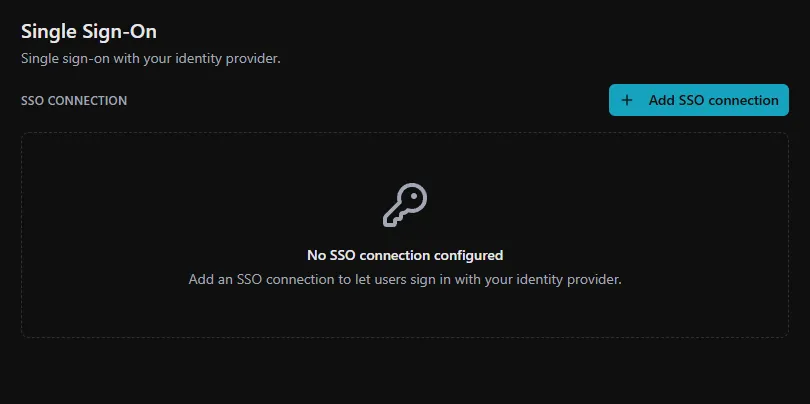
Section titled “1. Start the integration in Dew”In Dew, go to People → SSO and click Add SSO connection to open the setup wizard.
Identity provider: select Google.
Email domains: add every email domain Google Workspace owns (for example example.com). Users signing in with these domains will be sent to Google.
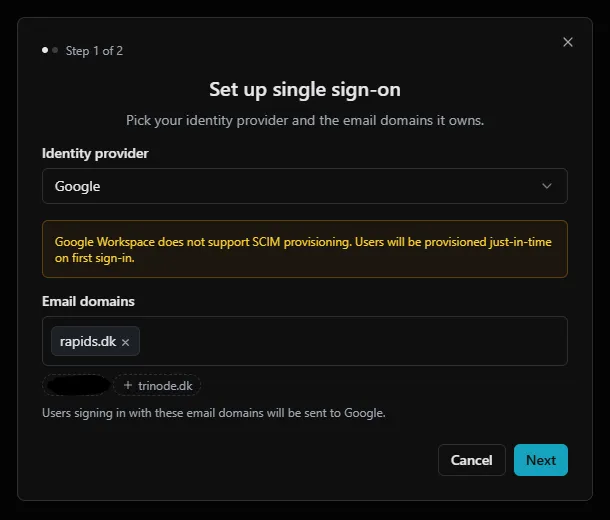
Click Next.
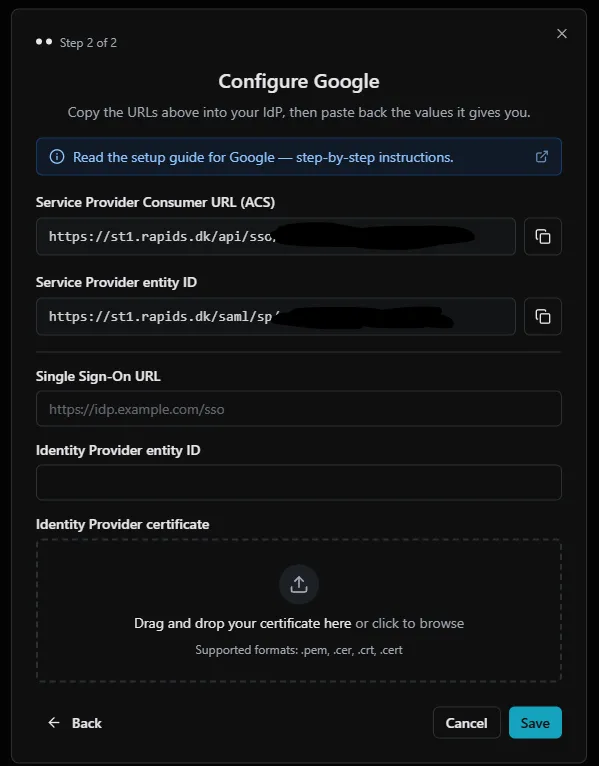
Copy the Dew URLs.
Leave the wizard open. Two values on this screen go into Google in the next step:
- Service Provider Consumer URL (ACS)
- Service Provider entity ID
2. Create the Dew SAML app in Google Workspace
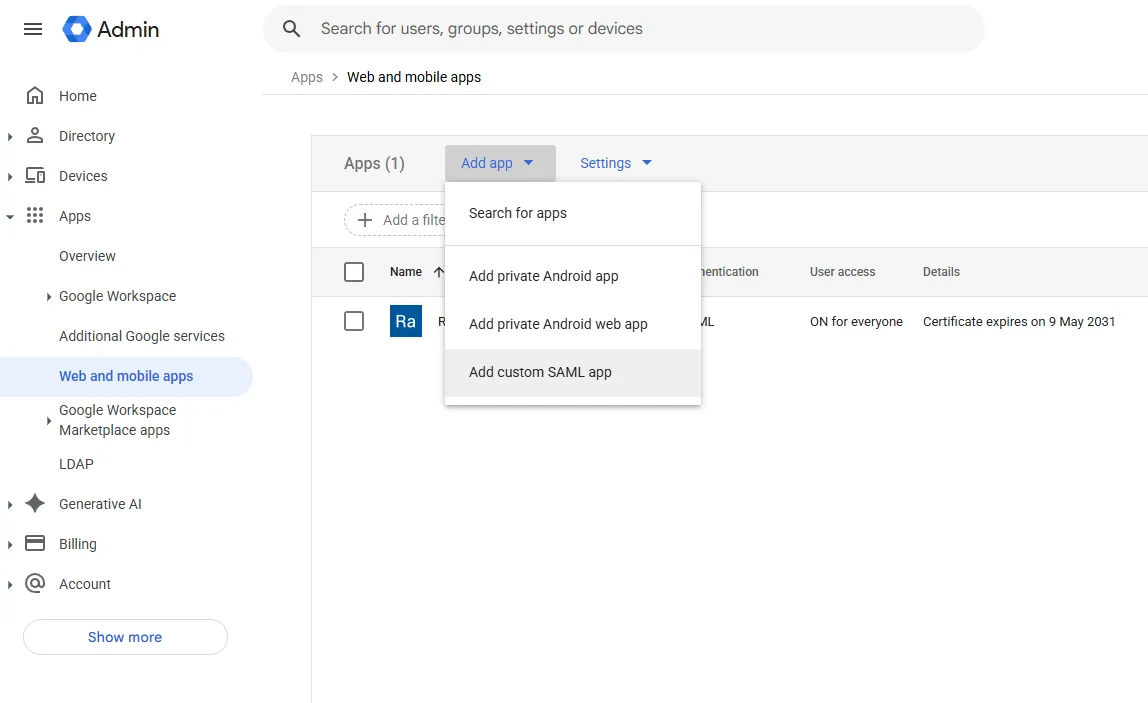
Section titled “2. Create the Dew SAML app in Google Workspace”Open the Google Admin console in a new tab.
In the sidebar, click Apps → Web and mobile apps.
Click Add app → Add custom SAML app.
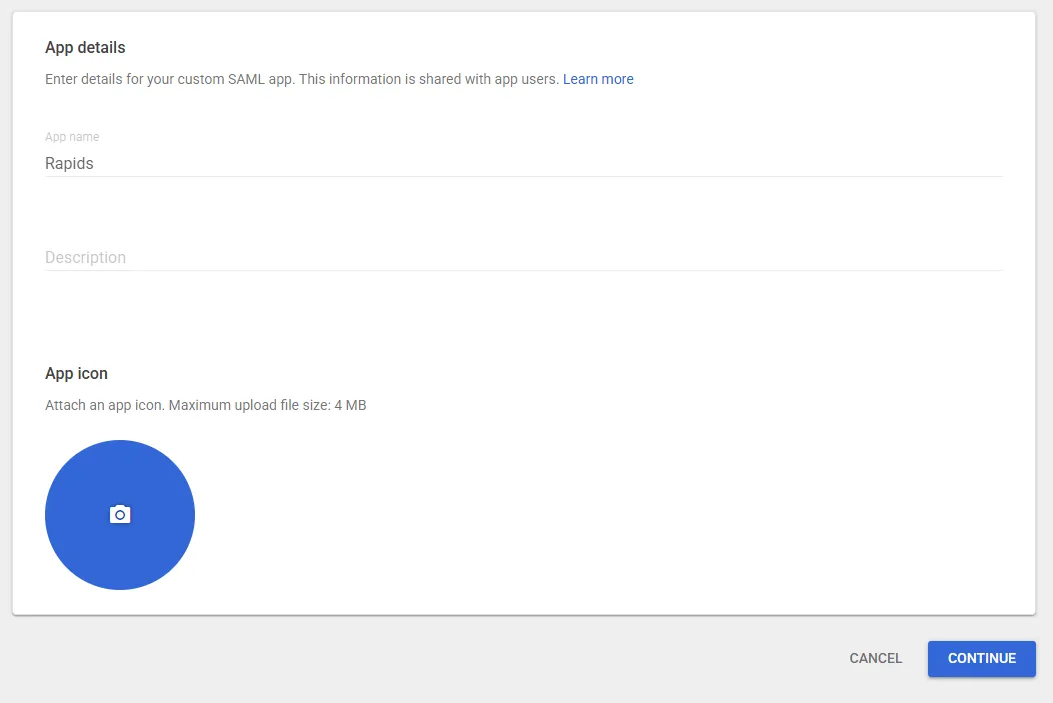
App details. Give the app a name (for example Dew) and optionally upload a logo. Click Continue.
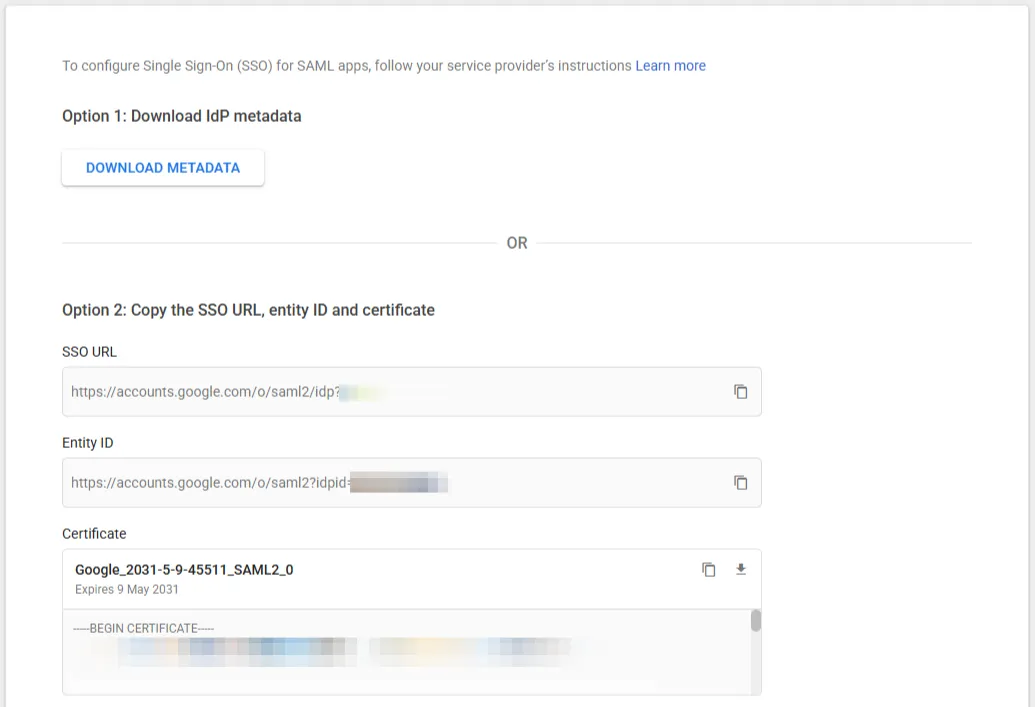
Google Identity Provider details. Three values from this screen go into Dew in the next section. Keep this tab open:
- SSO URL
- Entity ID
- Signing certificate: click Download Certificate to save the
Google_<date>_SAML2_0.pemfile.
Click Continue.
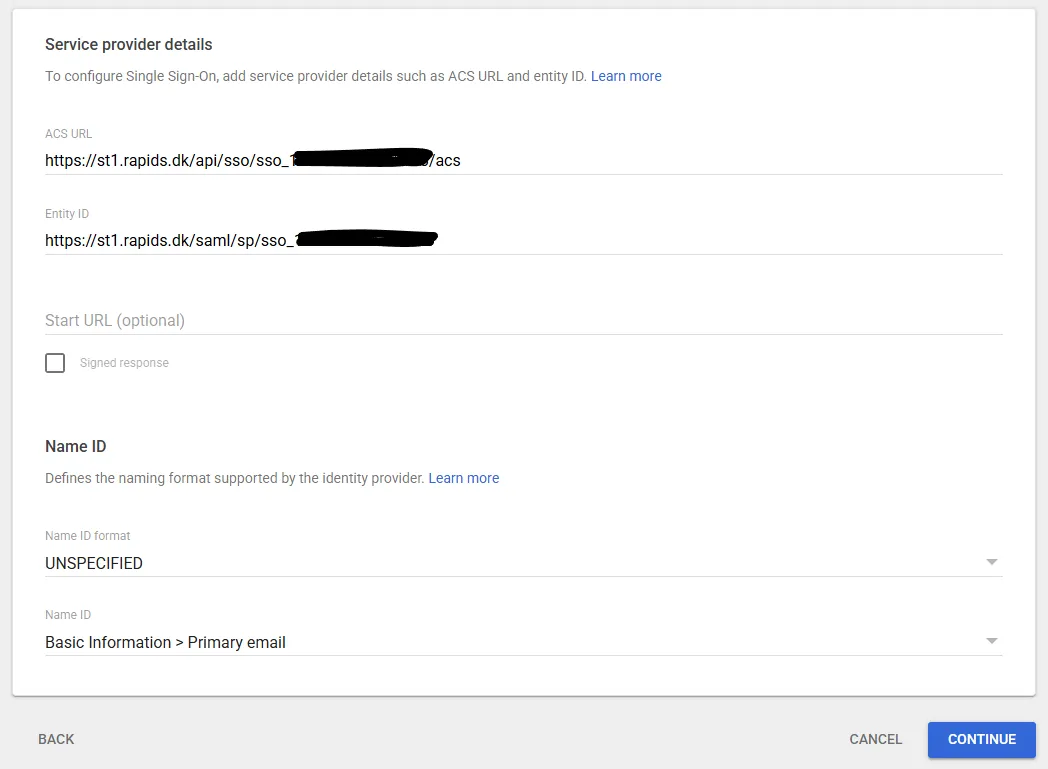
Service provider details. Fill in ACS URL and Entity ID using values from the Dew wizard tab:
| Google field | Dew wizard field |
|---|---|
| ACS URL | Service Provider Consumer URL (ACS) |
| Entity ID | Service Provider entity ID |
The remaining two fields should already match these defaults. Check that they do:
| Field | Default |
|---|---|
| Name ID format | EMAIL |
| Name ID | Basic Information > Primary email |
Click Continue.
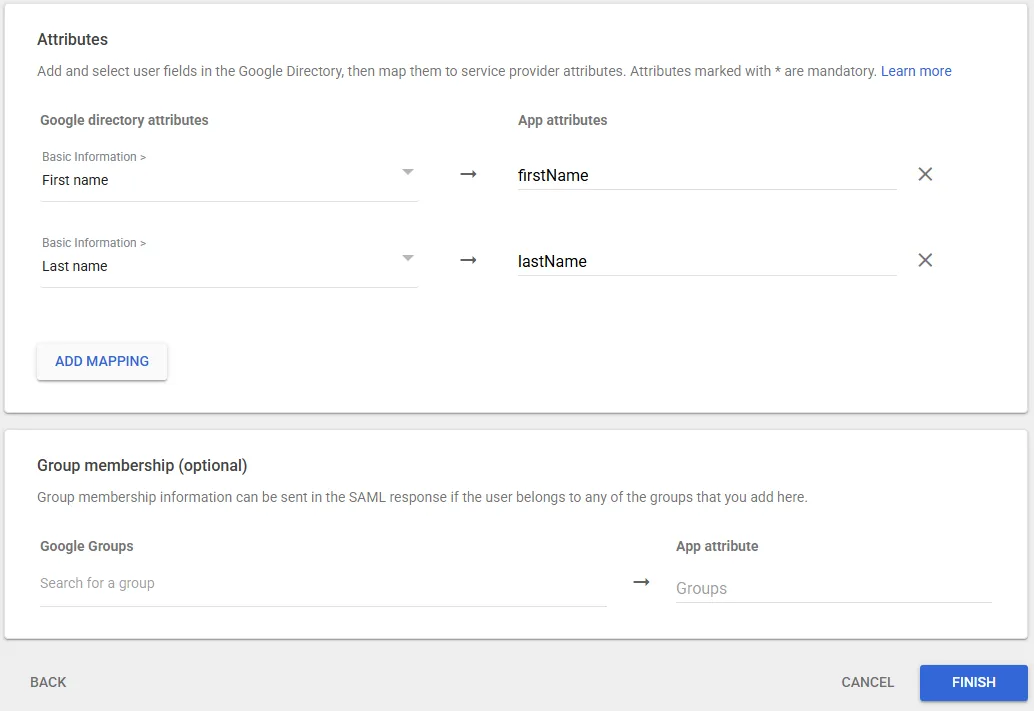
Attribute mapping. Map the user’s first and last names so Dew can fill them in:
| Google Directory attribute | App attribute |
|---|---|
| First Name | firstName |
| Last Name | lastName |
Click Finish.
3. Finish the integration in Dew
Section titled “3. Finish the integration in Dew”Switch back to the Dew wizard. Fill in the identity provider fields using values from the Google tab:
| Dew field | Google value |
|---|---|
| Single Sign-On URL | SSO URL |
| Identity Provider entity ID | Entity ID |
| Identity Provider certificate | Drop the Google_<date>_SAML2_0.pem file into the upload area |
| User ID attribute | Leave empty |
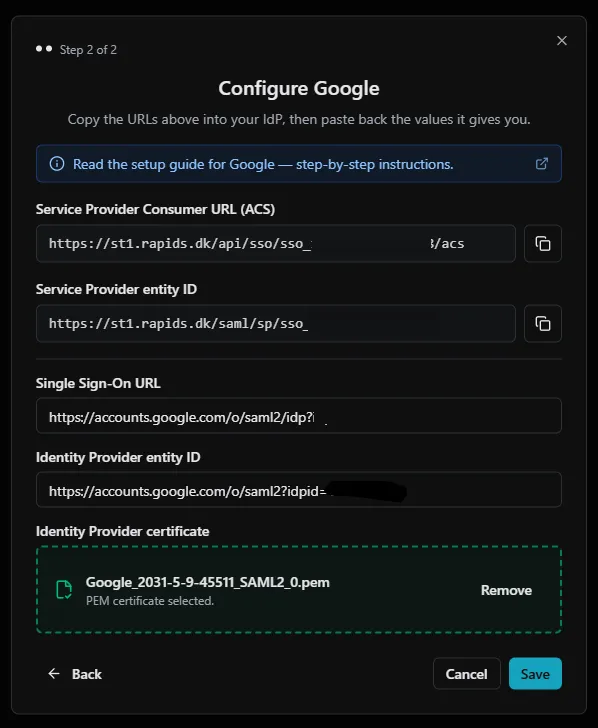
Click Save.
The connection now appears on the SSO page with a green dot.
4. Give new users access
Section titled “4. Give new users access”Dew creates an account at a user’s first Google sign-in only when a Dew domain is open to them: the domain’s access list includes Everyone, or a group that includes everyone at the user’s email domain. Otherwise Dew refuses the sign-in and creates no account.
The first domain you set up in Dew gives Everyone access automatically, so on a new install new users can sign in without any changes here. To check, open Settings → Domains, click ⋮ on the domain and choose Manage access. People with access lists everyone and every group that can use the domain.
To limit Dew to users at one email domain:
- Open People → Groups and click New group. Enter a name and click Create group.
- On the group’s page, click Add by email domain, enter the email domain (for example
example.com), click Preview and confirm. - On the Domains card, click Add domain and choose the Dew domain.
- Open the domain’s Manage access, remove Everyone and click Remove access.
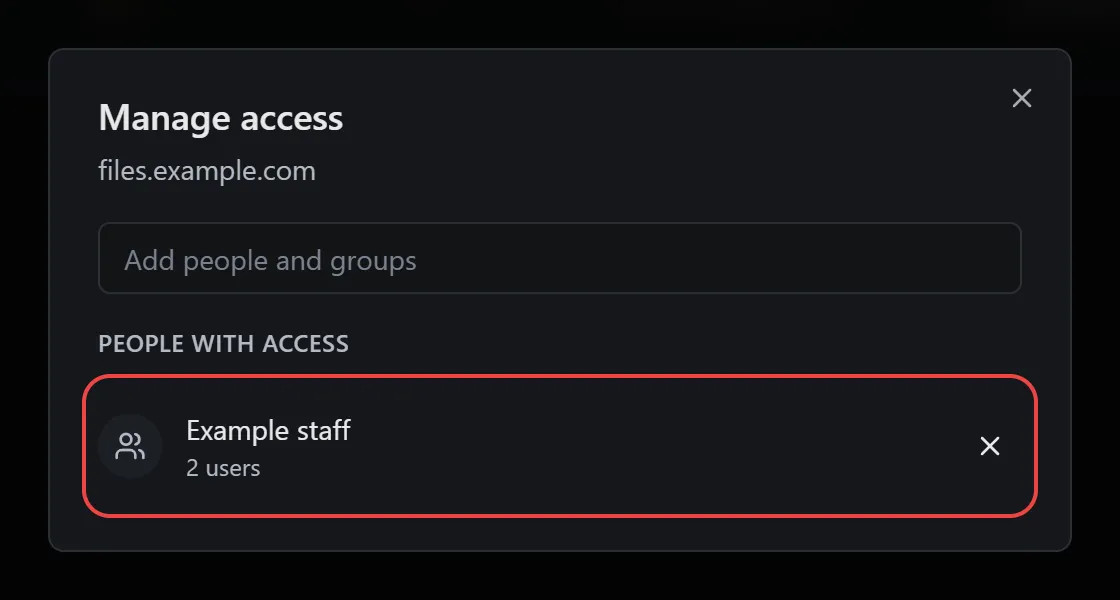
Access changes apply straight away, also for users who already have an account.
5. Enable user access in Google Workspace
Section titled “5. Enable user access in Google Workspace”A custom SAML app is off for everyone by default. In the Google Admin console, open the Dew app and click User access.
Set service status to ON for everyone, or for specific organizational units or groups, then click Save. Changes can take a few minutes to apply.
Once the app is on, Google also shows a Dew tile in the Google apps launcher. That tile doesn’t work: Dew only accepts sign-ins that start on the Dew sign-in page. Have users open Dew directly, for example https://dew.example.com/login.
6. Test the sign-in
Section titled “6. Test the sign-in”Open the Dew sign-in page in a private or incognito window and enter the email address of a Google Workspace user. You should be sent to Google, asked to sign in, and returned to Dew signed in.
Test with an account other than the owner, the account created when Dew was set up and marked Owner in the Role column of the users list. The owner always signs in with their Dew password, so you can still get in if Google stops working.
To stop users in your email domains from signing in with a local Dew password, open People → SSO and select SSO required in the Enforcement card. Leave it on SSO optional until a test sign-in works.
Troubleshooting
Section titled “Troubleshooting”| What you see | What to do |
|---|---|
Recent sign-in problems shows “The identity provider’s response was rejected” with assertion audience does not match SP entity ID |
The Entity ID in Google does not match the Service Provider entity ID shown in the Dew wizard. Copy it again and save in Google. |
Recent sign-in problems shows “The identity provider’s response was rejected” with Could not verify certificate against trusted certs |
Wrong certificate uploaded, or Google rotated the signing key. Download the .pem again from the Google app’s identity provider details and upload it with Update certificate in the connection’s menu. |
app not assigned to user from Google |
The app’s service status is OFF for that user’s organizational unit or group. See part 5. |
| The sign-in page shows “To sign in with single sign-on, start from the Dew sign-in page” | The user opened Dew from the Google apps launcher. Have them open the Dew sign-in page directly. See part 5. |
| “No account was created because no domain is open to everyone or to the user’s email domain.” | No Dew domain is open to the new user. Add Everyone, or a group for that email domain, to a domain’s Manage access. See part 4. |
| “The account has no domain access” | Give the user a domain, directly or through a group. See part 4. |
Most refused sign-ins are listed in the Recent sign-in problems card on People → SSO, with the reason. Errors Google shows never reach Dew, and a sign-in that didn’t start on the Dew sign-in page shows its message only on the sign-in page. For more detail, open System → System → Error logs in Dew and filter by SSO. When contacting support, include the problem shown in Recent sign-in problems.